
Active Connections
This page decides which hosts and scenarios Electros will use right now. Registering a target (under Connections) does not turn it on. Enabling it here does.
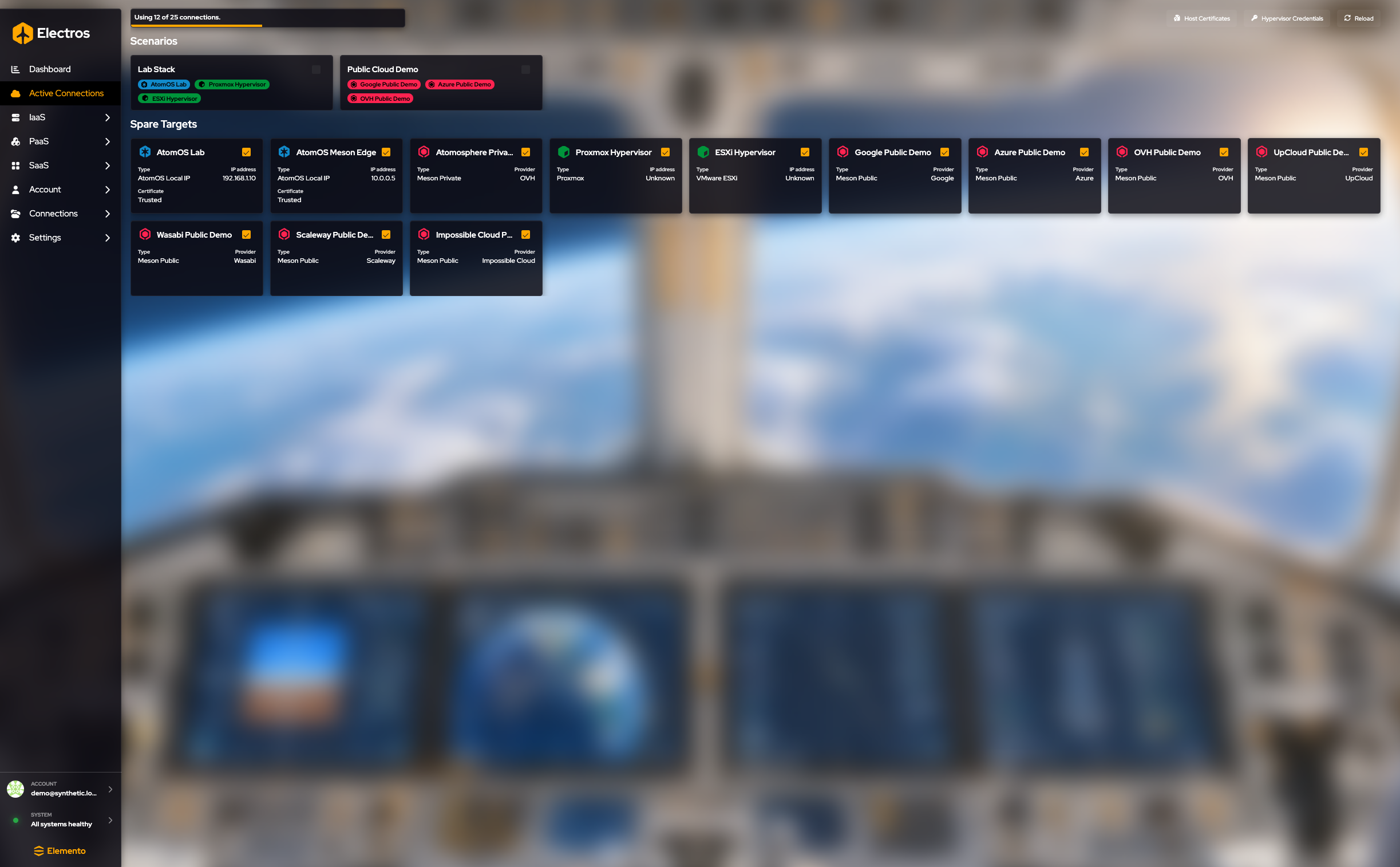
What this page is for
Registering a host under Connections only stores it. This page decides which of those hosts Electros will actually talk to in this session. A target that is off does not appear in host pickers, and its VMs and disks disappear from the IaaS lists. Turn a scenario on when you want a whole lab at once. Turn a spare target on when you want just that one machine.
The quota
The bar at the top says how many connections you are using out of the plan limit, for example “Using 12 of 25 connections.” Enabling another target fails when you are already at the cap. Disable one you are not using, or change plan, before you add more.
Scenarios

A scenario is a named bundle of targets (a lab stack, a public-cloud demo, and so on). Activating a scenario enables every target in that bundle and is the fastest way to switch context.
Targets that the current scenario requires show as locked. You cannot switch those off individually. Change to a scenario that does not include them, or edit the scenario, then disable the target.
Create and edit scenarios under Connections.
Spare targets
Below the scenarios, each card is one host that is not tied exclusively to the scenario view: AtomOS, a hypervisor, or a public or private cloud.
| On the card | Meaning |
|---|---|
| Name | Which target |
| Type | AtomOS on a local IP, Meson public, Meson private, Proxmox, ESXi, and so on |
| IP address or provider | The address of a local host, or the cloud name |
| Certificate | Whether an AtomOS host’s certificate is trusted |
Click a spare-target card to enable or disable it. If Electros refuses, that target is required by the scenario you have active.
Toolbar
| Control | What it does |
|---|---|
| Host Certificates | Review or trust AtomOS host certificates |
| Hypervisor Credentials | Store the username and password used when a Proxmox or ESXi target is enabled |
| Reload | Ask the targets daemon for a fresh list |
Host detail
Open a target’s detail when you need live host status (CPU, memory, disks on that machine) rather than the on/off switch. Come back here to enable or disable it.