
Storage
Storage is the inventory of disks Electros can attach to virtual machines: empty volumes, cloud images, cloud-init configs, and ISO or tool images.
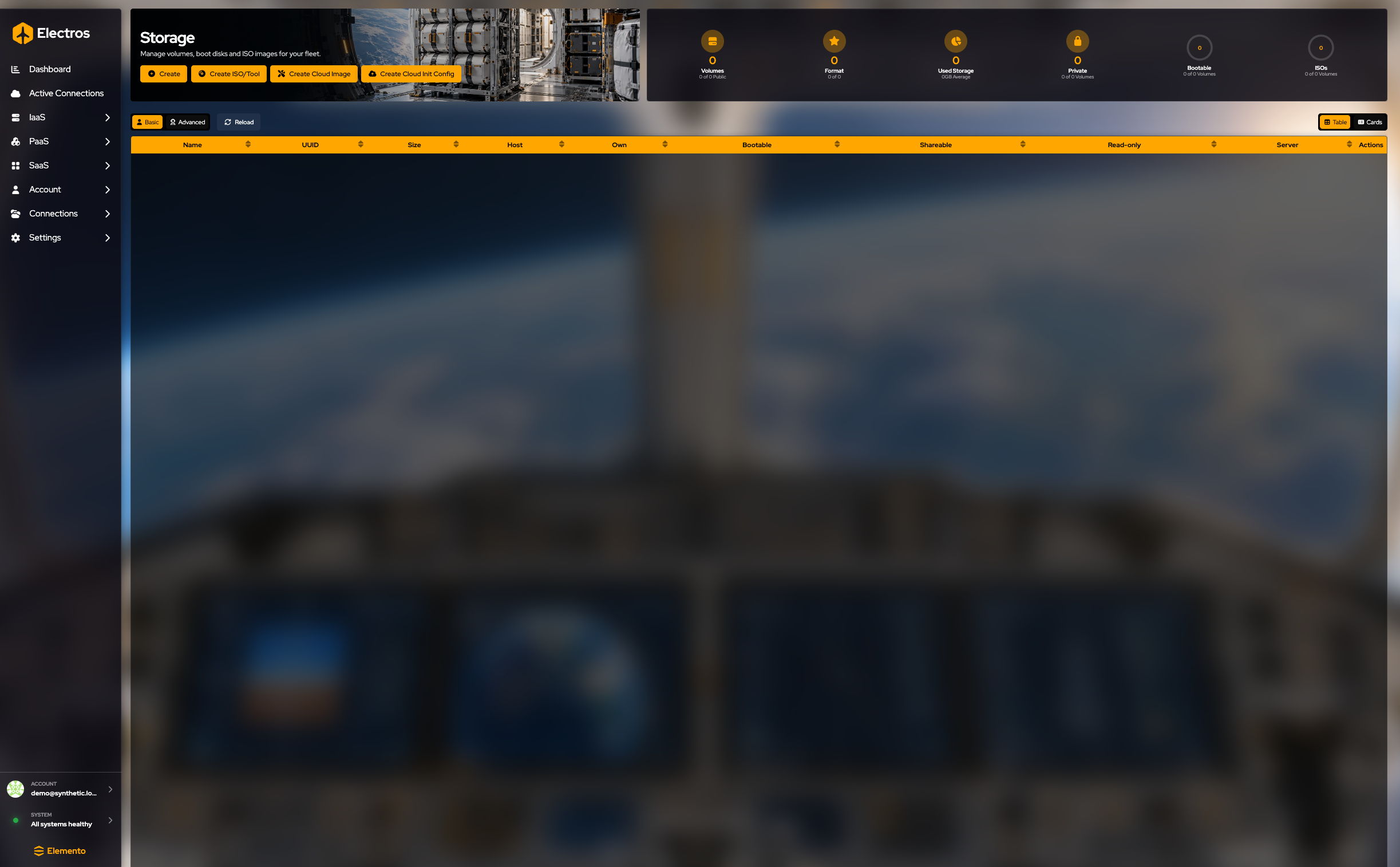
What this page is for
Storage is the disk catalogue. A virtual machine does not bring its own empty disk unless you attach one. You create the volume here, on a host that can run block storage, then attach it when you create or edit a VM. Cloud images and ISO images are volumes too: they are how a guest gets an installer or a ready root disk.
The banner says it directly: manage volumes, boot disks, and ISO images for your fleet.

Read the page
The gauges along the top count Volumes, Format, Used Storage, Private, Bootable, and ISOs.
The table columns are Name, UUID, Size, Host, Own, Bootable, Shareable, Read-only, Server, and Actions. Click a UUID to copy it.
Table is the compact list. Advanced shows more of each volume. Reload fetches a fresh copy. Table and Cards at the right switch how the same inventory is drawn. Cards are easier to scan when you have a handful of disks; the table is easier when you are sorting by size or host.
Create a disk
The buttons under the title open a wizard. Every one of them asks for a description, then a host (How creation works). Do not press Create at the end of the wizard unless you want the disk allocated on that host.
Empty volume
Where: Storage → Create
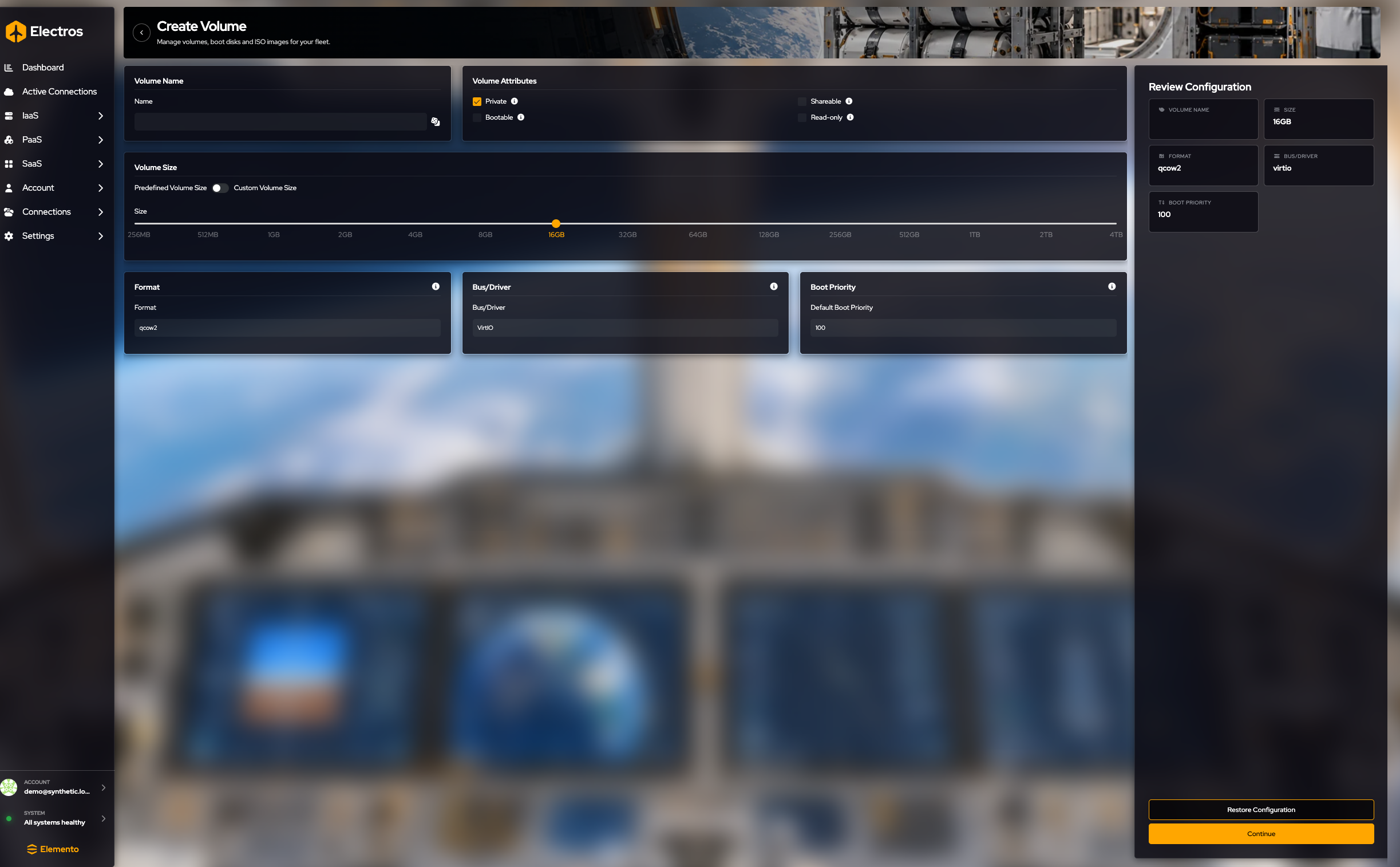
Work down the form. The review on the right repeats name, size, format, bus, and boot priority.
- Name the volume, or use the dice. Required.
- Size. Stay on Predefined and drag the slider (it starts at 16 GB, between 256 MB and 4 TB). Switch to Custom if you need a size that is not on the slider, and type it in the memory field.
- Who can use it.
- Private starts on. Turn it off only if every user on that host should see the disk.
- Shareable and Bootable cannot both be on. A bootable disk is one a VM can start from. A shareable disk can be attached to more than one VM.
- Read-only prevents guests from writing.
- Format defaults to qcow2. Choose raw if you need a flat file.
- Bus / driver defaults to virtio. Use sata, ide, or scsi only when the guest requires it.
- Boot priority defaults to 100. Lower numbers boot first (0 is first).
Press Continue.
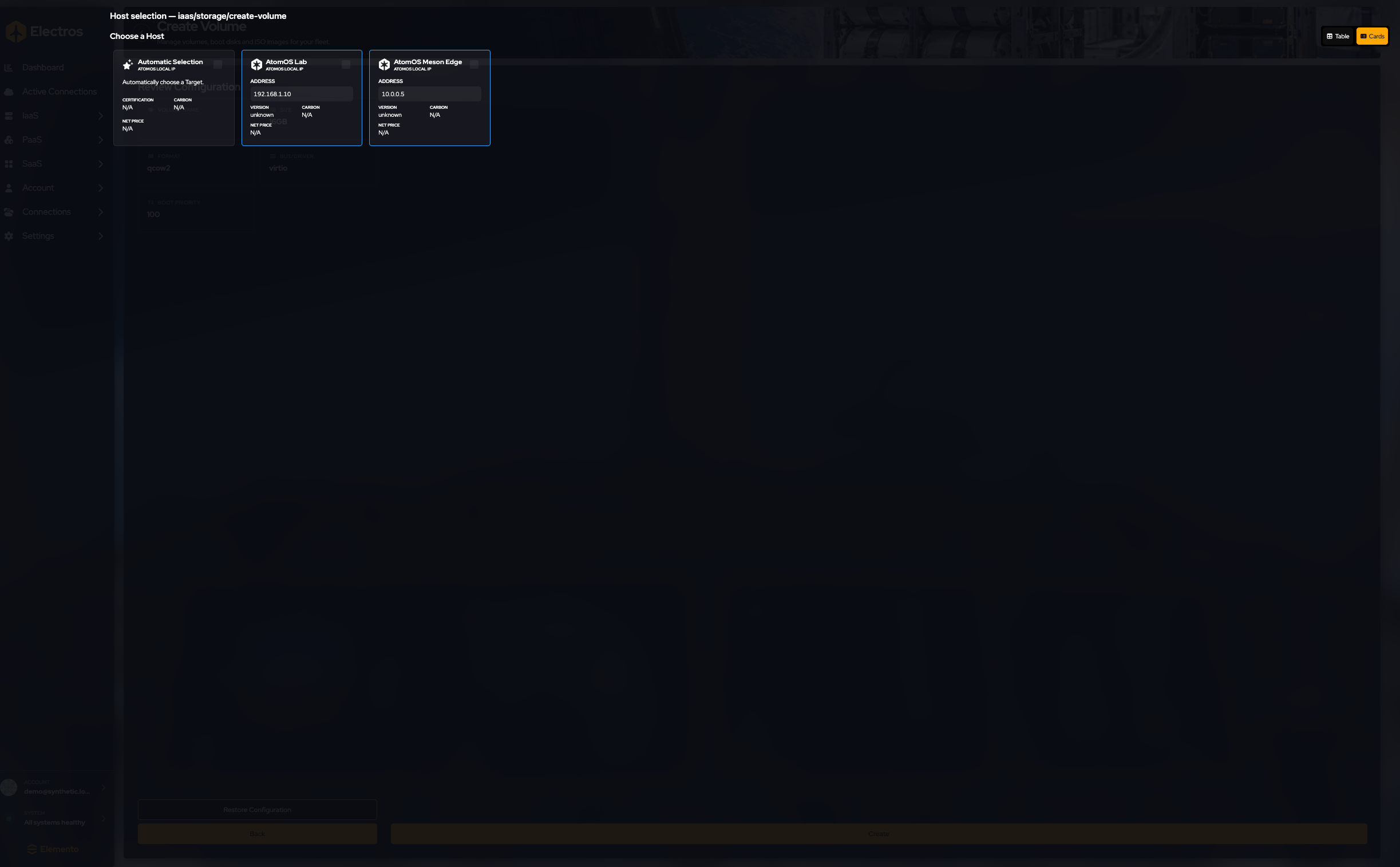
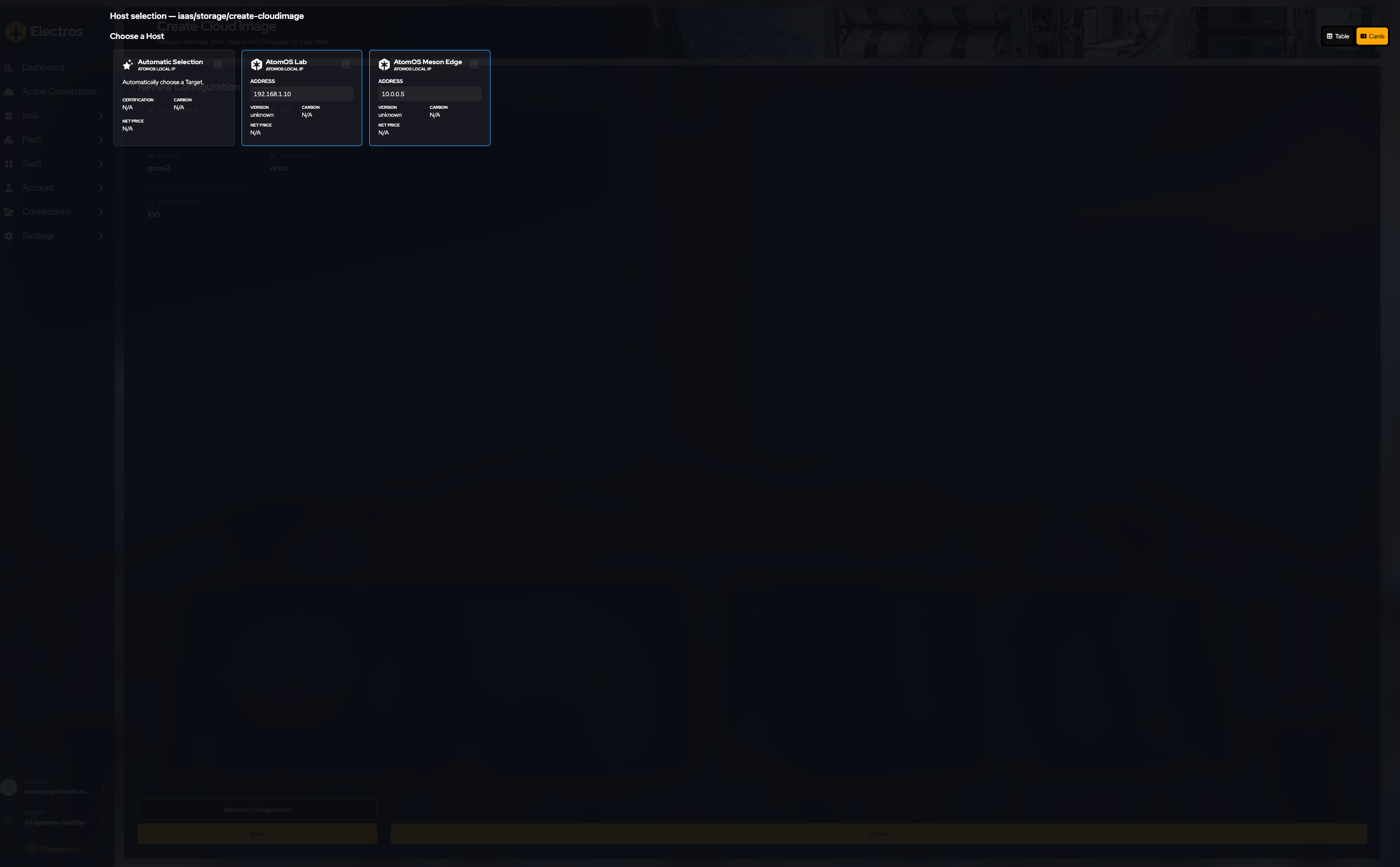
Pick one host card. If a cloud host says Update Required, that target cannot create this volume until it is updated — choose another host or update it first. Stop before Create.
Cloud image
Where: Storage → Create Cloud Image
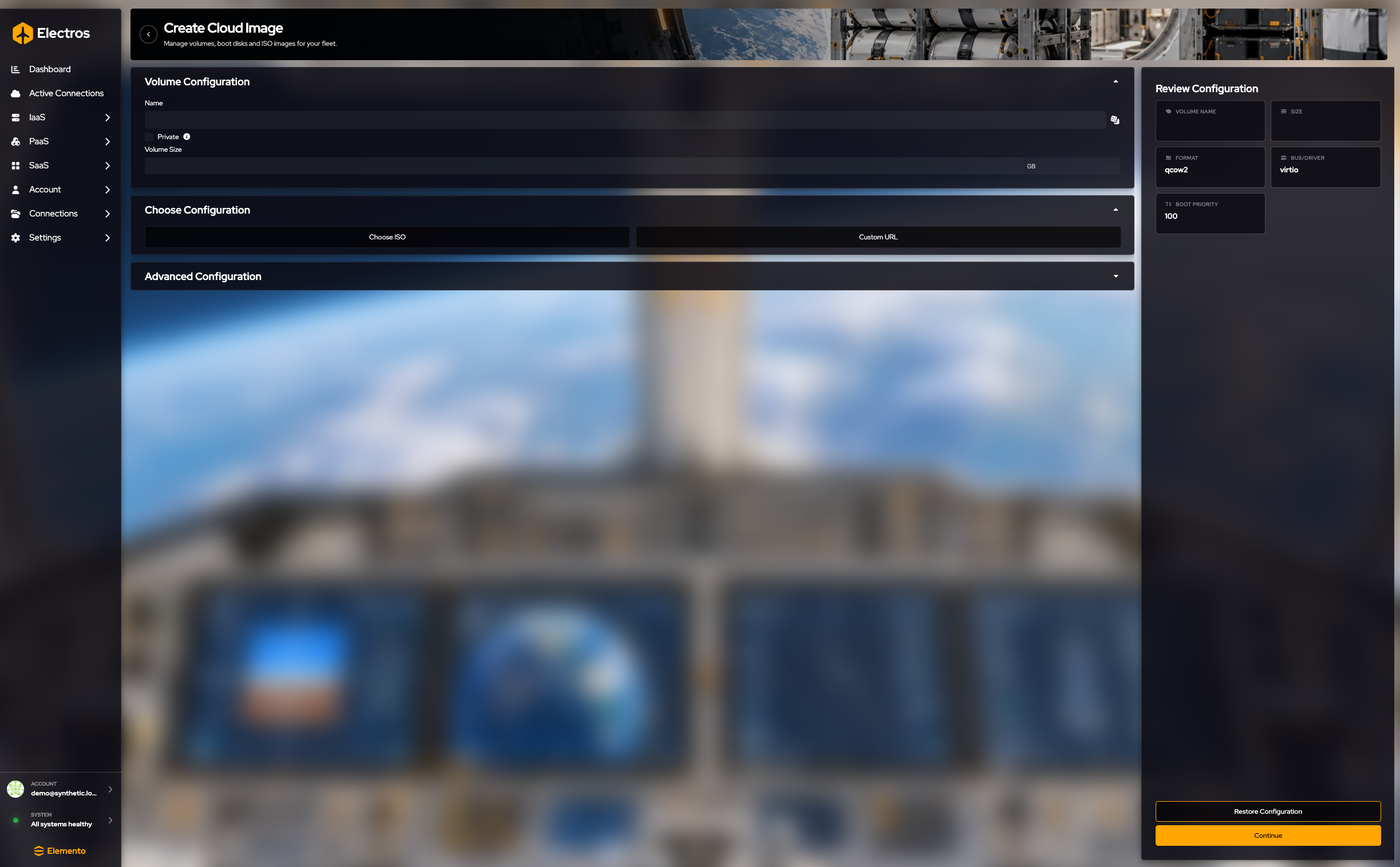
- Name, and optionally mark Private.
- Set Volume size in GB if the image should be larger than the source.
- Choose how Electros finds the image:
- ISO — pick OS family, flavour, and version from the catalogue.
- Custom URL — paste a direct URL. An empty URL is rejected.
- Under advanced options, format defaults to qcow2, bus to virtio, boot priority to 100.
Review shows name, size, format, bus, and boot priority. Continue, then pick a host.
Cloud-init volume
Where: Storage → Create Cloud Init Config
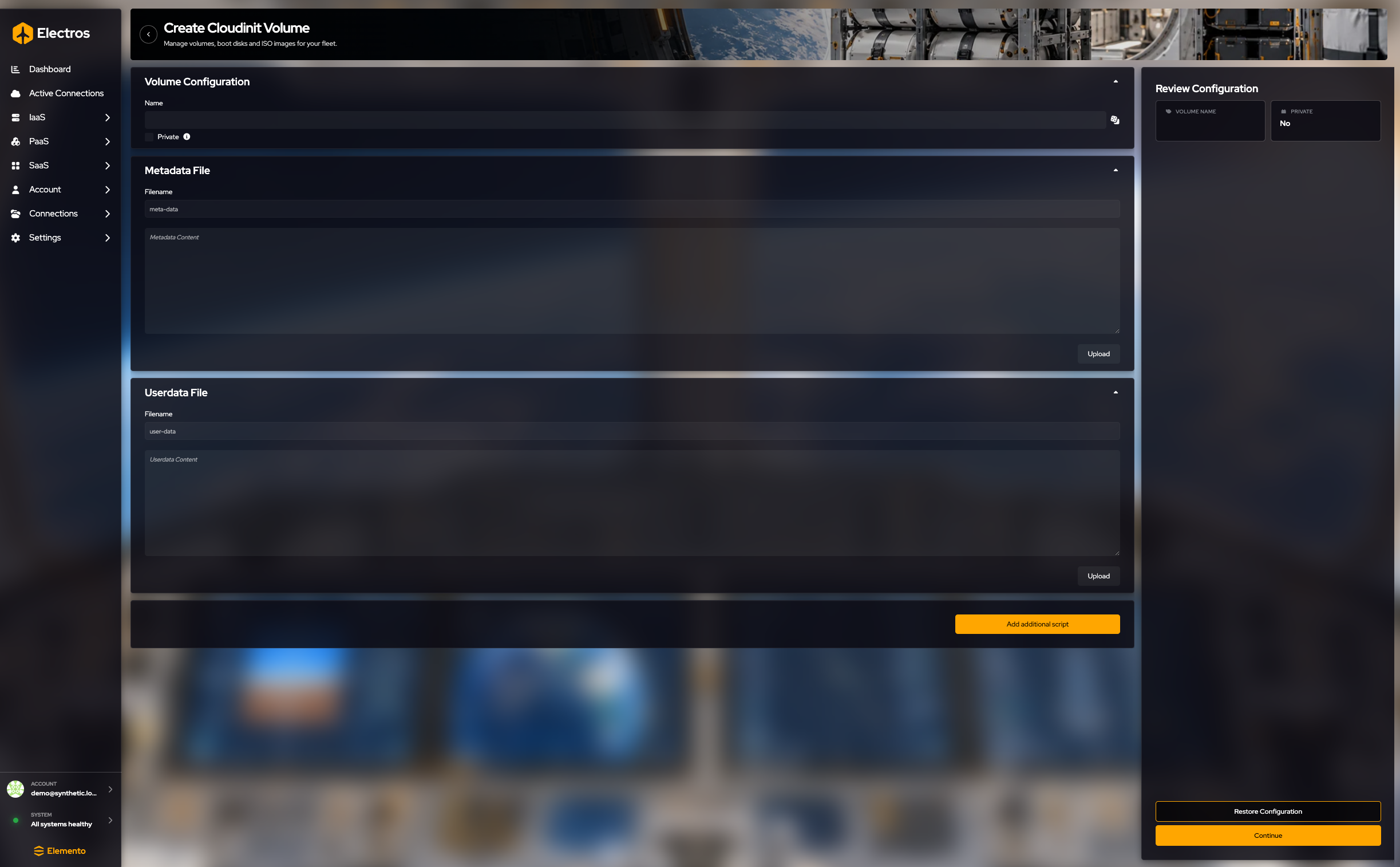
This volume is not a big data disk. It carries the files a guest reads on first boot.
- Name the volume. Private starts off.
- Metadata is always named
meta-data. Type the YAML, or press Upload and choose a file on your computer. The file dialog is outside Electros — you have to pick the file yourself. - User data is always named
user-data. Same choice: type it or upload it. - Add additional script if the guest needs extra files. Each one has its own filename, text, and upload button.
The review only confirms the name and whether the volume is private. If both files are empty, Electros asks you to confirm before it continues — that is expected, not an error.
Continue, choose a host, stop before Create. Do not upload files that contain real passwords if you are capturing screenshots.
ISO or tool
Where: Storage → Create ISO/Tool
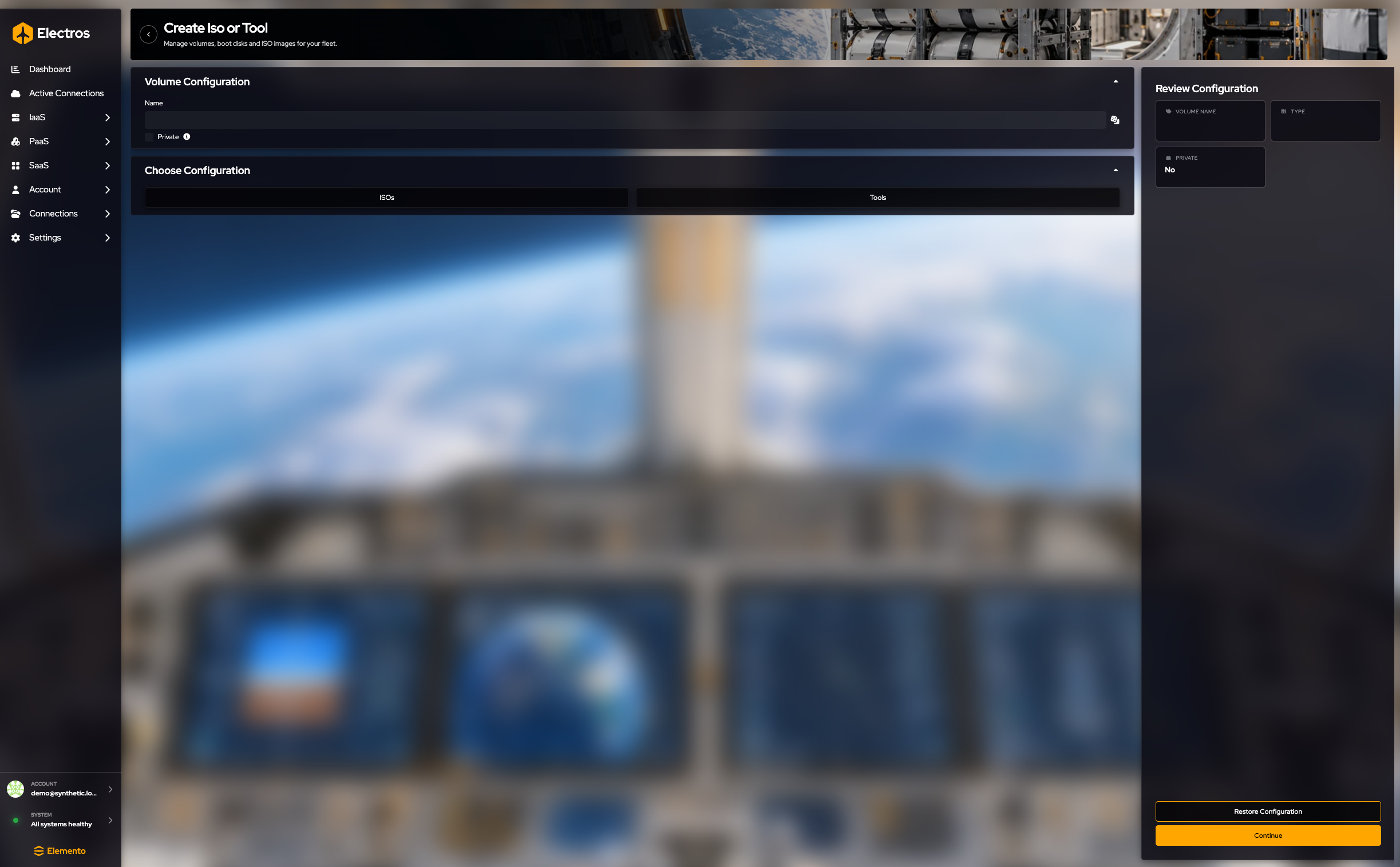
- Name the volume. Private starts off.
- Choose ISOs or Tools. You must pick one before create.
- If you chose ISOs, walk the catalogue: family, flavour, version. Only entries that actually have an ISO URL are listed.
- If you chose Tools, pick the tool type, the OS family, then the tool.
Review shows the name, the type, and whether it is private. Continue, choose a host, stop before Create.
Work with a volume that already exists
Delete sits on the row. Right-click the row for the rest:
| Action | What it does |
|---|---|
| Edit | Changes flags such as name or boot priority, depending on what the host allows |
| Resize | Grows the volume. You cannot shrink below the data that is already there |
| Convert | Changes the on-disk format (for example toward qcow2) |
| Delete | Asks you to confirm. Cancel if you opened it by mistake. Detach a volume from a running VM before you delete it |