
PaaS and SaaS
These pages are managed services, not virtual machines you assemble yourself. The sidebar fills them from the services your organisation is allowed to deploy. In a typical install you will see:
| Sidebar | You are looking at |
|---|---|
| PaaS → Managed Kubernetes | A hosted Kubernetes control plane |
| PaaS → Kubernetes | Kubernetes where you supply the state bucket |
| PaaS → Database | Redis, MySQL, SQL Server, or Postgres |
| PaaS → Object Storage | Buckets |
| SaaS → n8n | An n8n app VM |
| SaaS → OpenClaw | An OpenClaw app VM |
You come here after the service exists. Create is how you order one. The table is how you see whether it is running, where it was placed, and how you get in. Credentials is the important row action on databases and Kubernetes: it is the password or kubeconfig, and it is a secret. Delete removes the instance. Confirm only when you mean to.
What every service page has in common
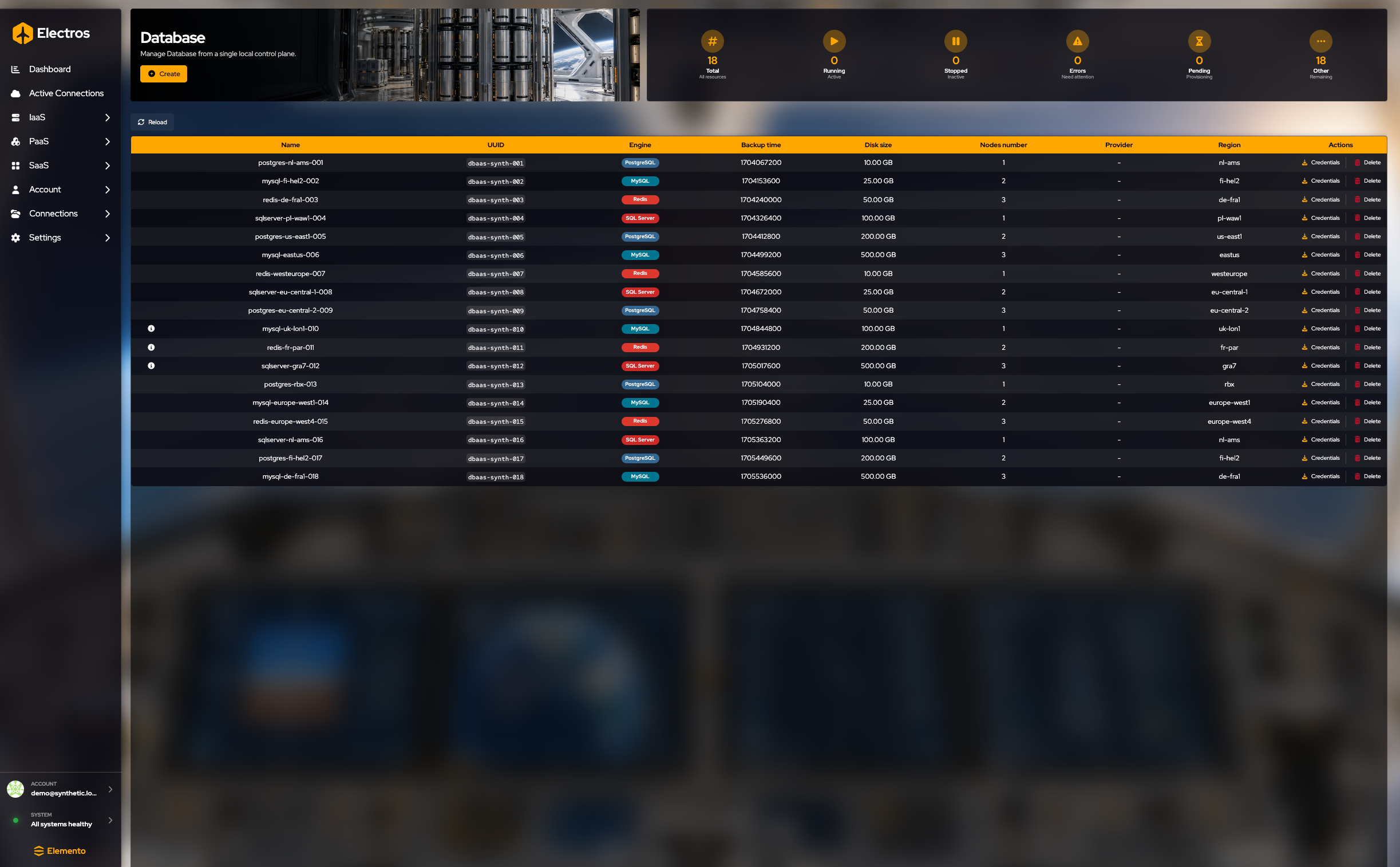
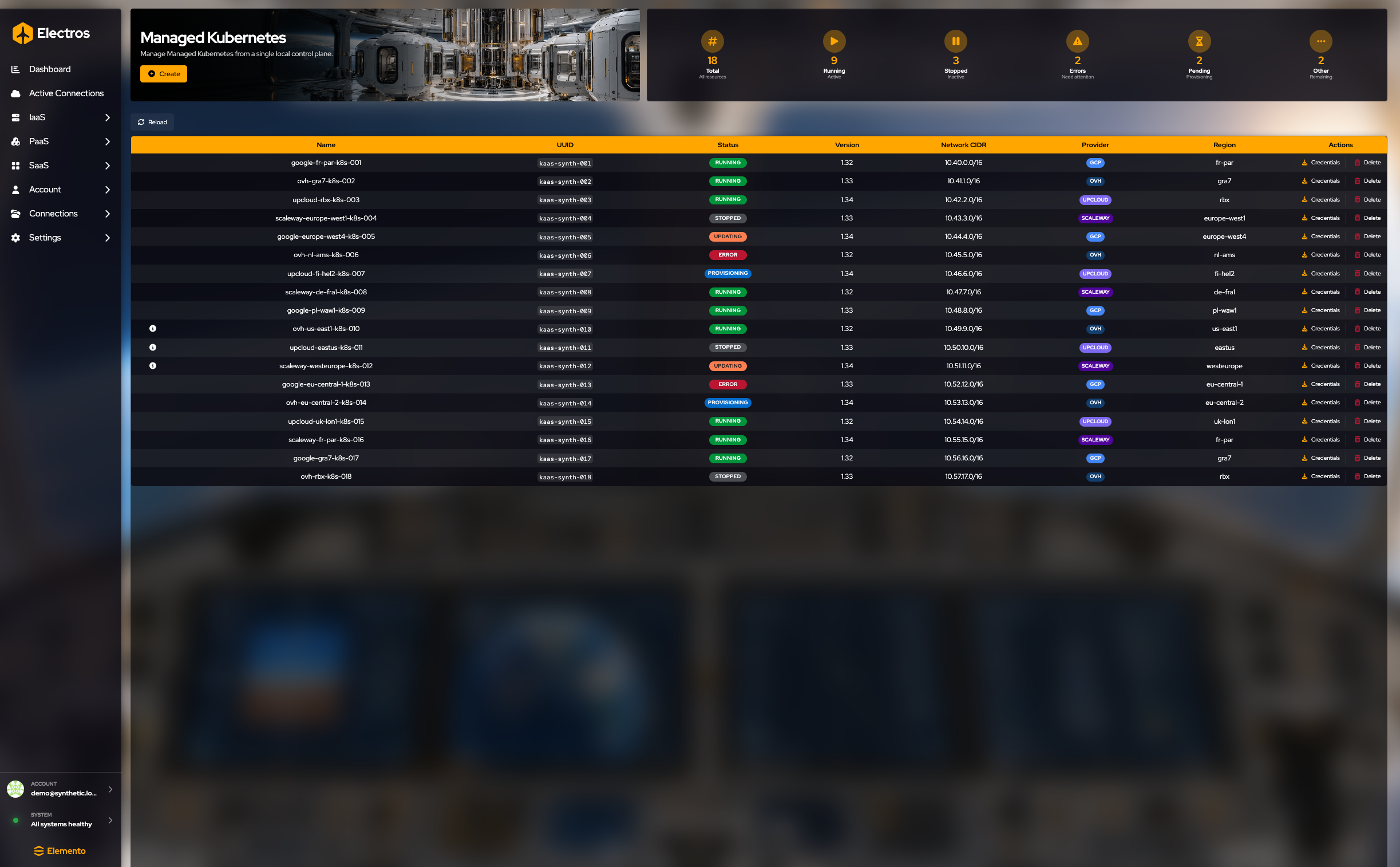
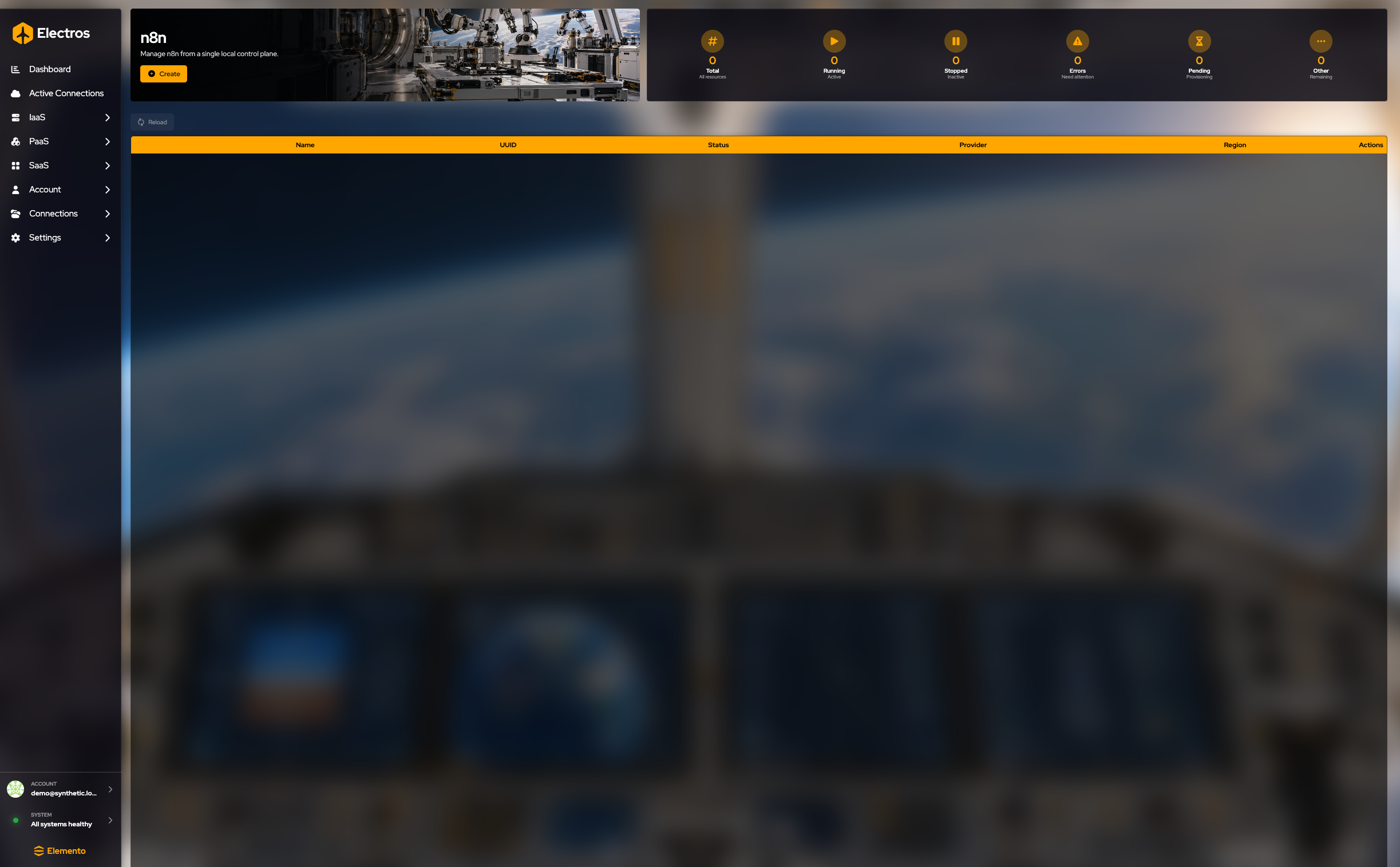
Every one of these pages shares the same chrome:
- A Create button under the title. It opens a form, then a host picker. Region and price come from the host you select.
- Six gauges: Total, Running, Stopped, Errors, Pending, and Other.
- Reload.
- A table. Delete is always in Actions and asks you to confirm.
What changes is the columns and the extra action.
Database. Columns are Name, UUID, Engine (Postgres, MySQL, SQL Server, Redis), Backup time, Disk size, Nodes number, Provider, Region, and Actions. Besides Delete you get Credentials. That dialog shows the connection secret. Do not paste it into a ticket.
Managed Kubernetes. Columns are Name, UUID, Status (Planned, Provisioning, Error, and so on), Version, Network CIDR, Provider, Region, and Actions. Credentials is the kubeconfig-style secret for that cluster.
n8n and OpenClaw. Columns are Name, UUID, Status, Provider, Region, and Actions. An empty table with every gauge at zero means you have not deployed one yet.
Kubernetes (the one where you bring the state bucket) and Object Storage use this same page shape, with columns that match what you filled in at create time.
Create one
PaaS and SaaS create screens share one flow (How creation works). The fields change with the service; the steps do not.
- Fill the form. Required fields are marked by the form; a password field is always a secret.
- Press Continue. Create stays disabled until a host is selected and Electros can price the allocation.
- Choose a host. The region comes from that host — you do not pick a region in the form.
- Stop before Create. A successful create can open a payment page.
Restore Configuration asks you to confirm, then clears the form.
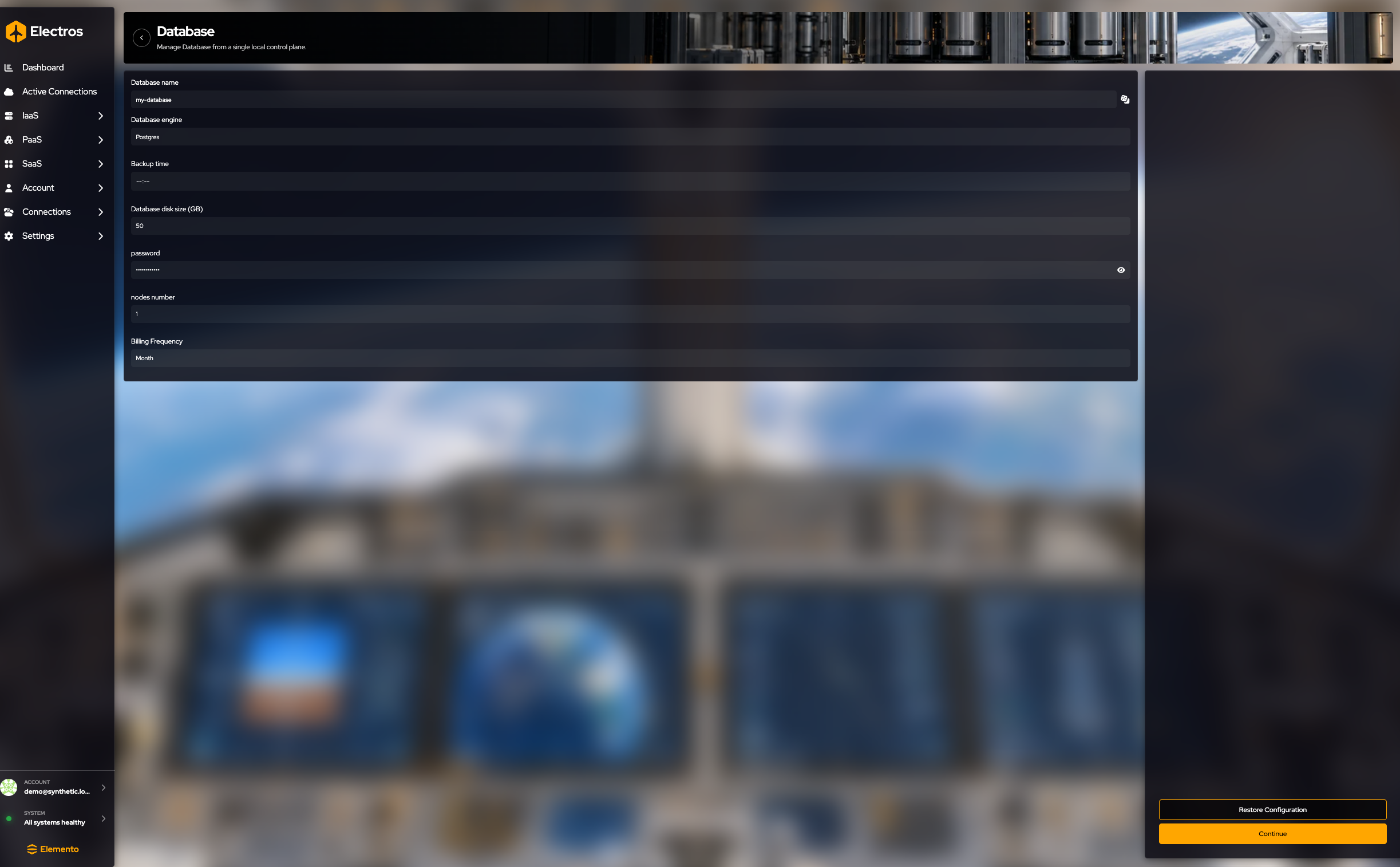
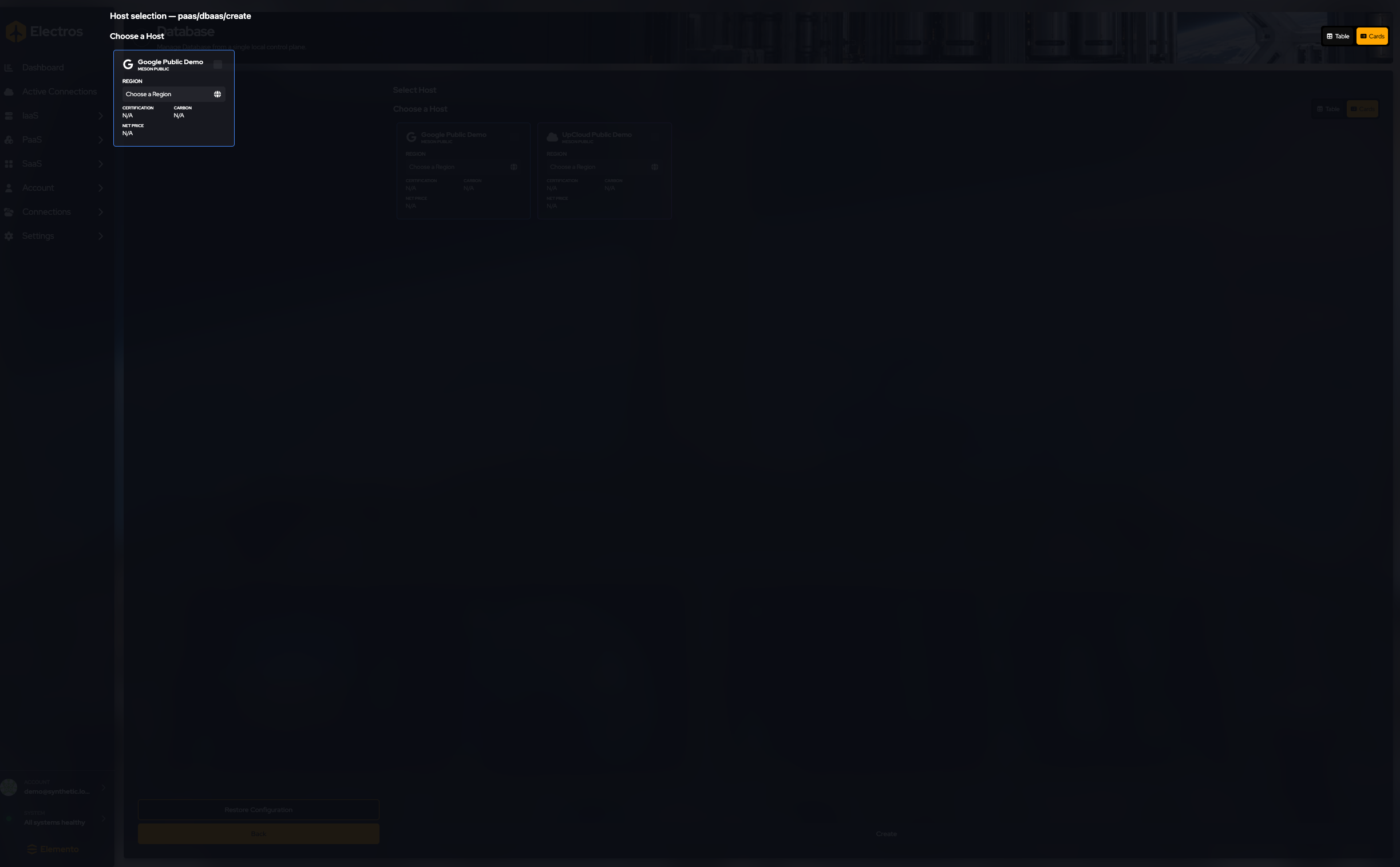
Database
Where: PaaS → Database → Create
| What you set | Guidance |
|---|---|
| Name | A name you will recognise in the list |
| Engine | Starts as Postgres. Also Redis, MySQL, or SQL Server |
| Backup time | When backups should run |
| Disk | Starts at 50 GB |
| Password | Secret. Replace any example value before you create |
| Nodes | Starts at 1 |
| Billing | Starts at monthly. Also daily, weekly, or yearly |
n8n and OpenClaw
Where: SaaS → n8n → Create (OpenClaw is the same kind of form)
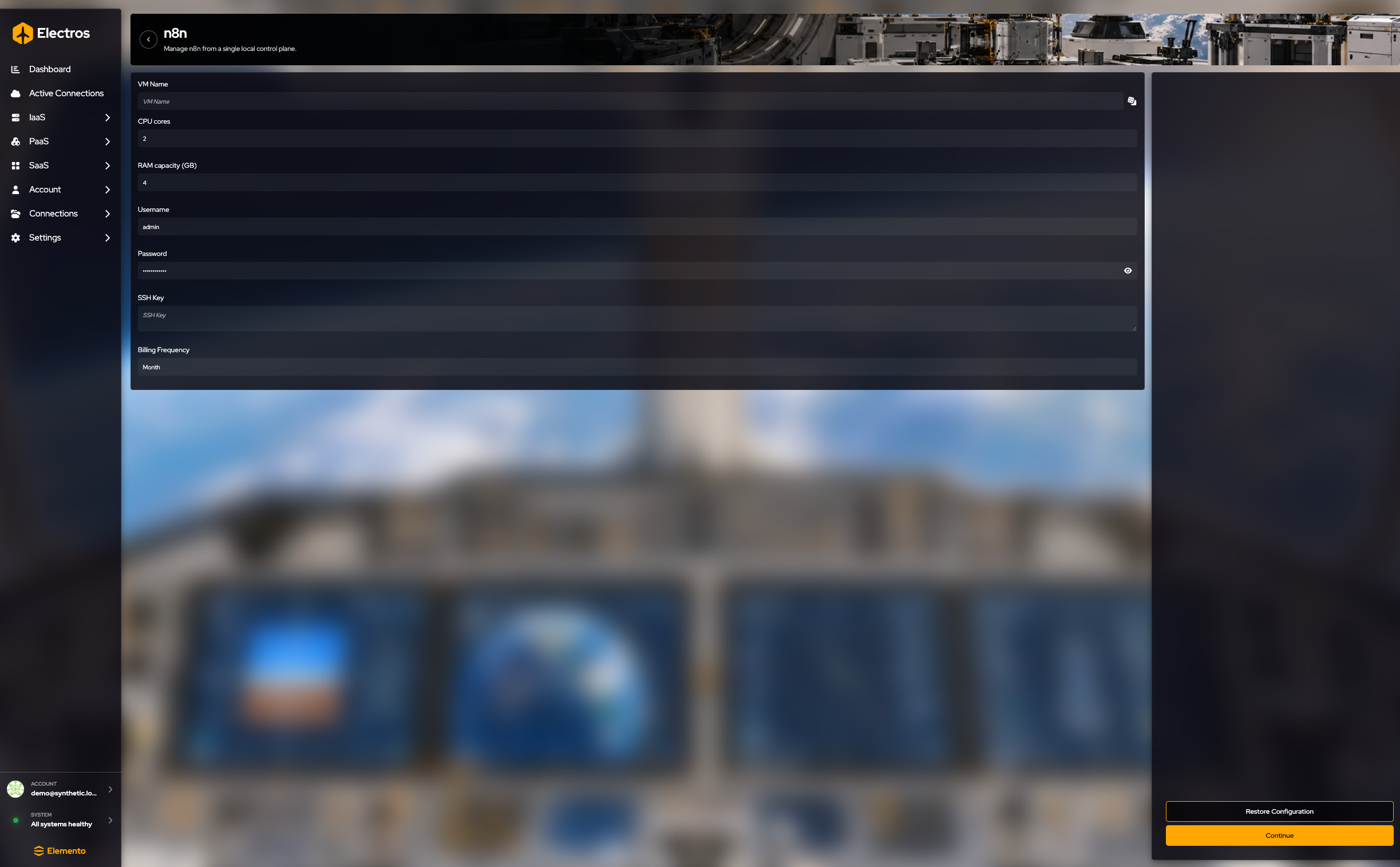
You are describing a small VM that runs the app:
| What you set | Typical start |
|---|---|
| VM name | You choose |
| CPU | 2 cores for n8n, 4 for OpenClaw |
| RAM | 4 GB |
| Username | admin |
| Password | Secret — set your own |
| SSH key | Public key, optional |
| Billing | Monthly |
Managed Kubernetes
Where: PaaS → Managed Kubernetes → Create
| What you set | Typical start |
|---|---|
| Cluster name | my-cluster until you change it |
| Node pools | Pick from the list |
| DHCP | On |
| Network range | 192.170.5.0/24 until you change it |
| Updates | Always update, or manual |
| Kubernetes version | The newest offered (for example 1.34) |
| Control-plane HA | Off until you need it |
| Billing | Monthly |
Kubernetes (you bring the state store)
Where: PaaS → Kubernetes → Create
This variant expects an S3-compatible bucket for cluster state.
| What you set | Guidance |
|---|---|
| Cluster name | You choose |
| S3 endpoint, bucket, access key | From your object store |
| Secret access key | Secret |
| Node count | Starts at 3 |
| Node and control-plane disk | Start at 64 GB each |
| Network CIDR | The pod/service range you want |
| SSH public key | So you can reach the nodes |
Object storage
Where: PaaS → Object Storage → Create
| What you set | Typical start |
|---|---|
| Bucket name | You choose; it must be unique for that provider |
| Size | 1 TB |
| Billing | Monthly |
The region is whichever host you select on the next step.
Create at the end of those wizards can open a payment page. Passwords and cloud secret keys stay in the form only — do not copy them into notes.
If the sidebar group is empty, no service intents were loaded. That is a daemon or catalogue problem, not a missing click.