
Connections
Connections is where an organisation admin registers hosts and groups them into scenarios. Turning them on for daily work happens on Active Connections, not here.
You only see this section if your role can manage the organisation.
Targets
What this page is for
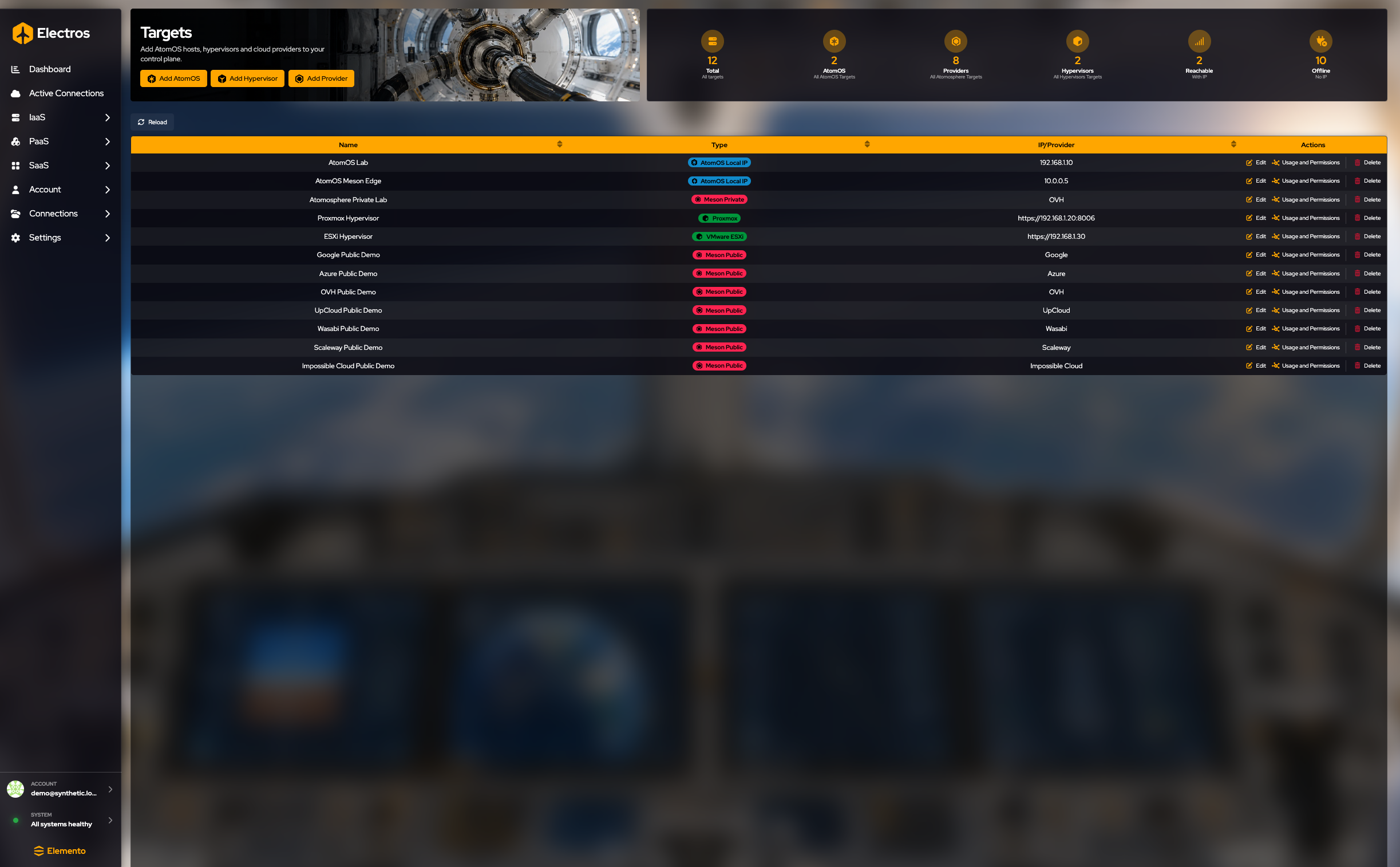
Targets is the address book. Nothing here powers on a VM. You record the machines and cloud accounts Electros is allowed to use, then you enable them on Active Connections. If a host is missing from a wizard, it was never added here, or it was added and left disabled.

The table is every cloud target the organisation knows about. Columns are Name, Type (AtomOS Local, Meson Public, Meson Private, Proxmox, VMware ESXi), and IP/Provider.
The gauges above the table count Total, AtomOS, Providers, Hypervisors, Reachable, and Offline. Reachable and Offline match the green and red dots on the dashboard.
Add from the buttons on the page. Steps for each wizard are below.
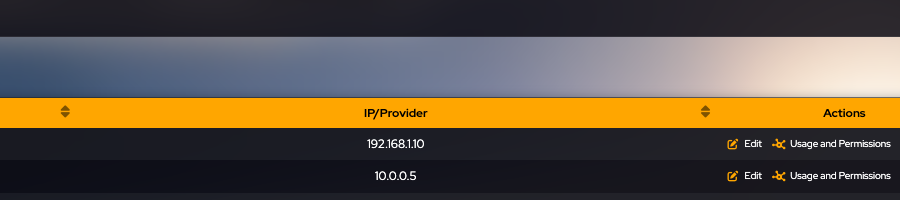
What you can do on a row
- Edit changes the name and address you stored. It does not rebuild the host.
- Usage and Permissions chooses which organisation members may use this target. You need the target to exist first.
- Delete asks you to type the target’s name. Cancel if you only wanted to see the dialog. Deleting a target removes it from scenarios and from host pickers.
The first contact with a new AtomOS host can show a certificate fingerprint. Compare it with the machine you expect, then approve or deny. Electros will not use an untrusted host for creates.
Register a connection
Add an AtomOS host
Where: Targets → Add AtomOS
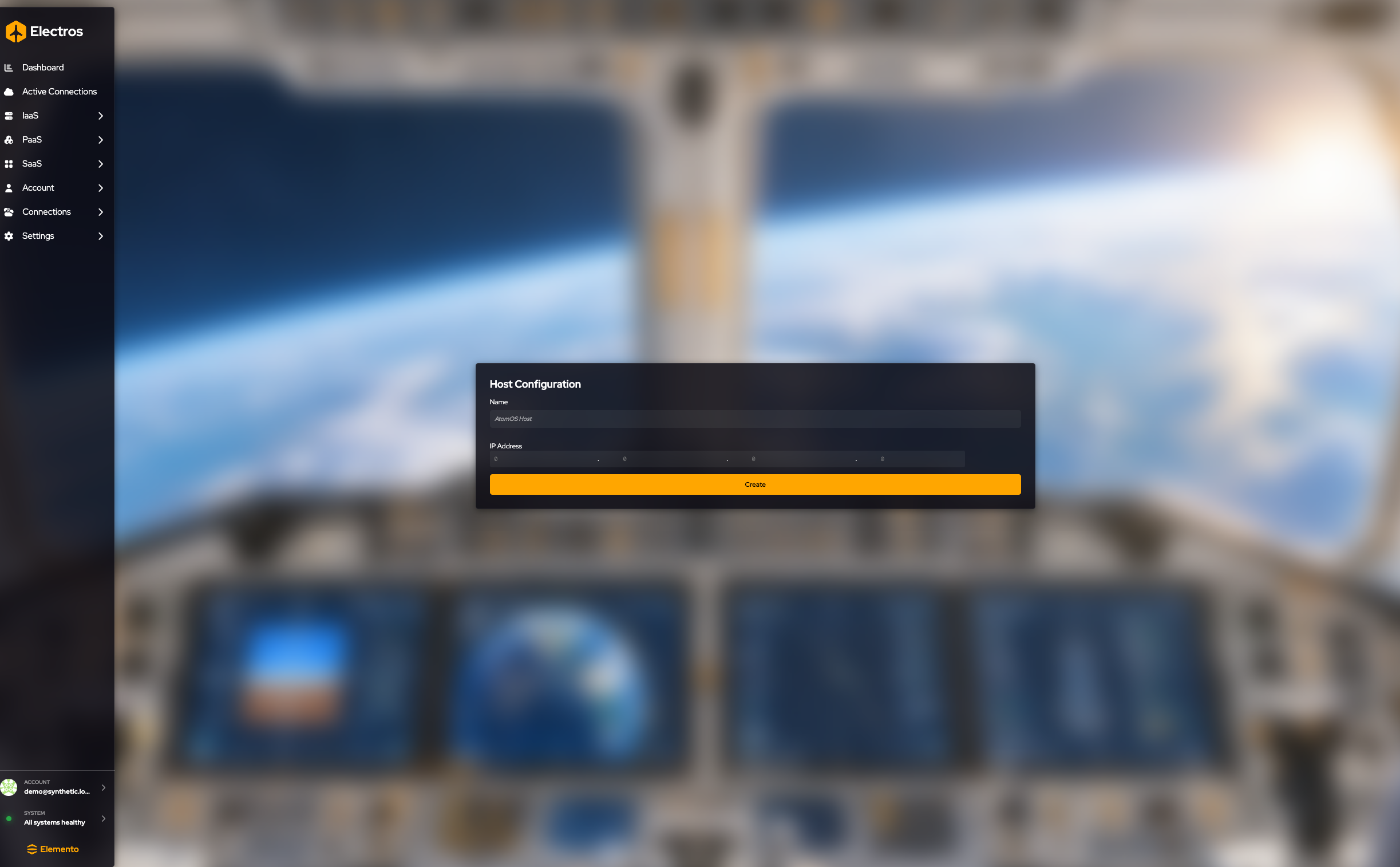
- Name — required. Something you will recognise in host lists, for example the lab or the site.
- IP address — required.
0.0.0.0is rejected. - Create returns you to the targets list.
The first time Electros talks to that IP it may show a certificate fingerprint. Compare it with the host you expect, then approve or deny. Do not approve a fingerprint you cannot check.
Add a cloud provider (Meson)
Where: Targets → Add Provider
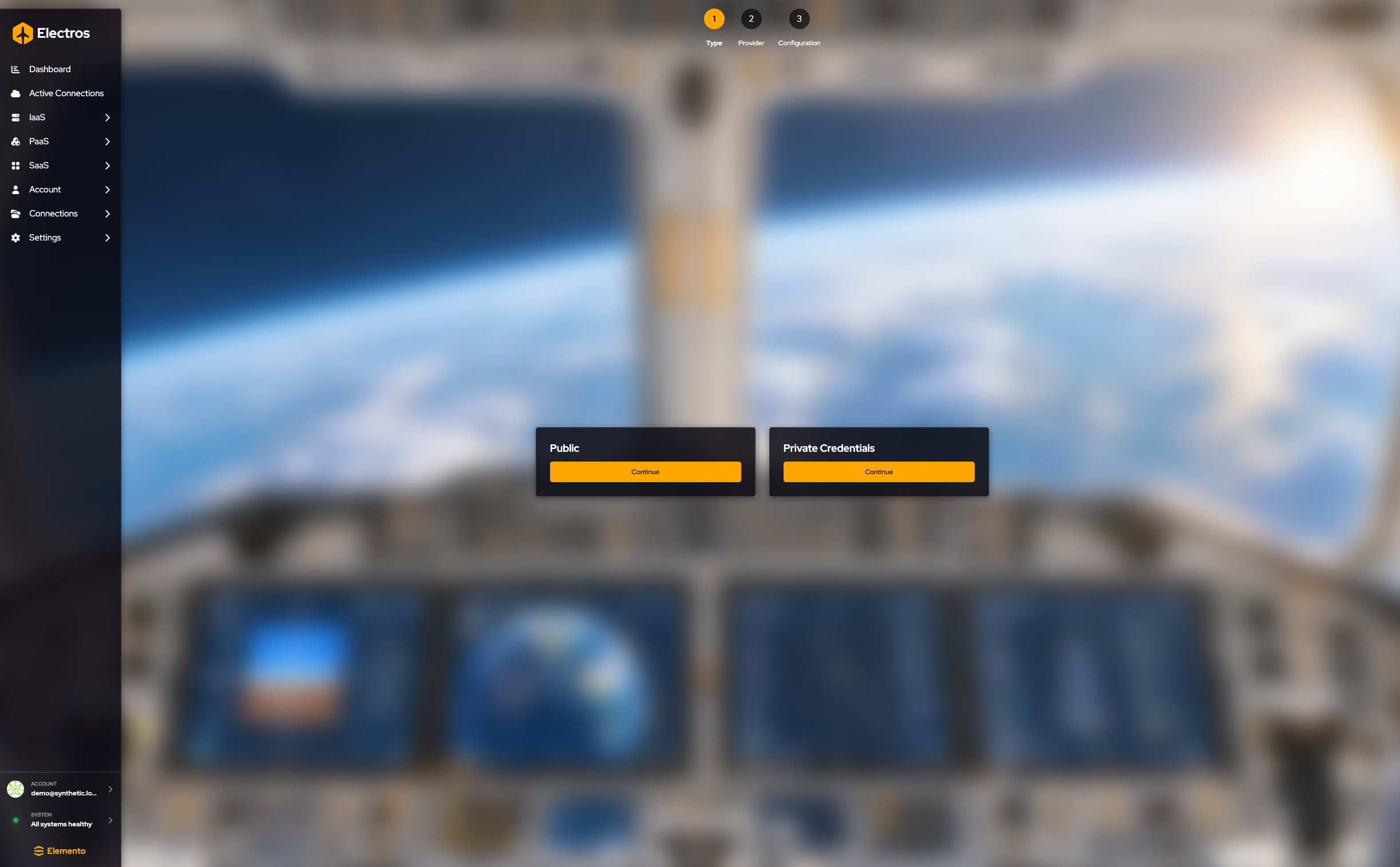
Public account
Use this when your organisation already allows a shared public-cloud demo or account.
- Choose Public.
- Tick the providers you want Electros to use. Only providers that allow public use are listed. A box that is already ticked means that provider is already connected.
- Conclude adds the ones you ticked and removes the ones you cleared.
Private account
Use this for your own cloud credentials.
- Choose Private.
- Select one provider.
- Target name — required.
- Fill the credential form. The fields depend on the provider (API keys, project IDs, and so on). Treat every value as a secret.
- Conclude.
Add a hypervisor
Where: Targets → Add Hypervisor
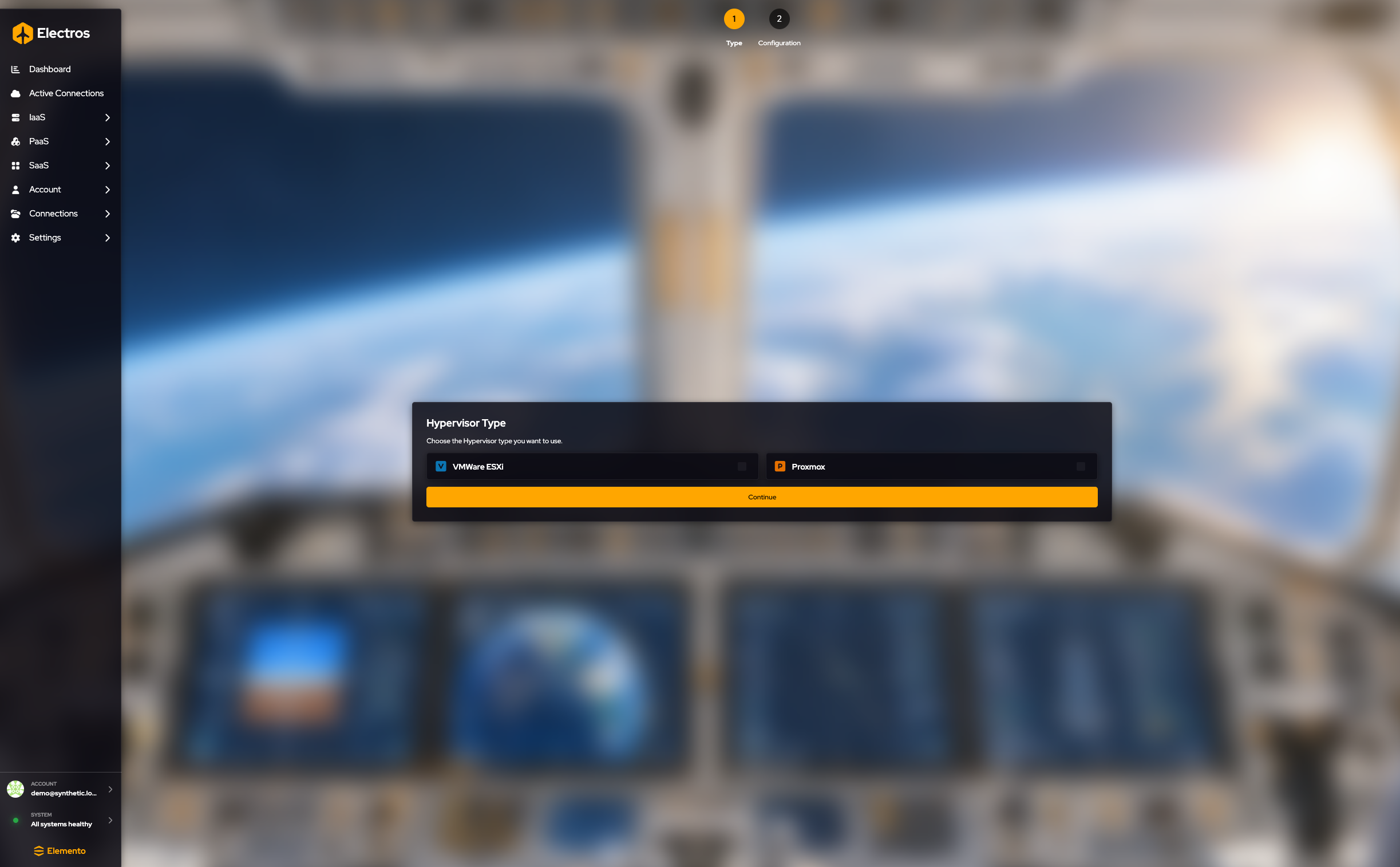
- Choose VMware (ESXi 6 or 7) or Proxmox (VE 7 or 8).
- Target name — required.
- Host URL — required, and it must start with
http://orhttps://. Example shape:https://192.168.0.42:8006. - Create.
You do not type the hypervisor password here. Electros asks for credentials later, when you enable the target.
Create a scenario
A scenario is a named set of targets you can turn on together from Active Connections.
Where: Scenarios → New Scenario (the same screen edits an existing scenario)
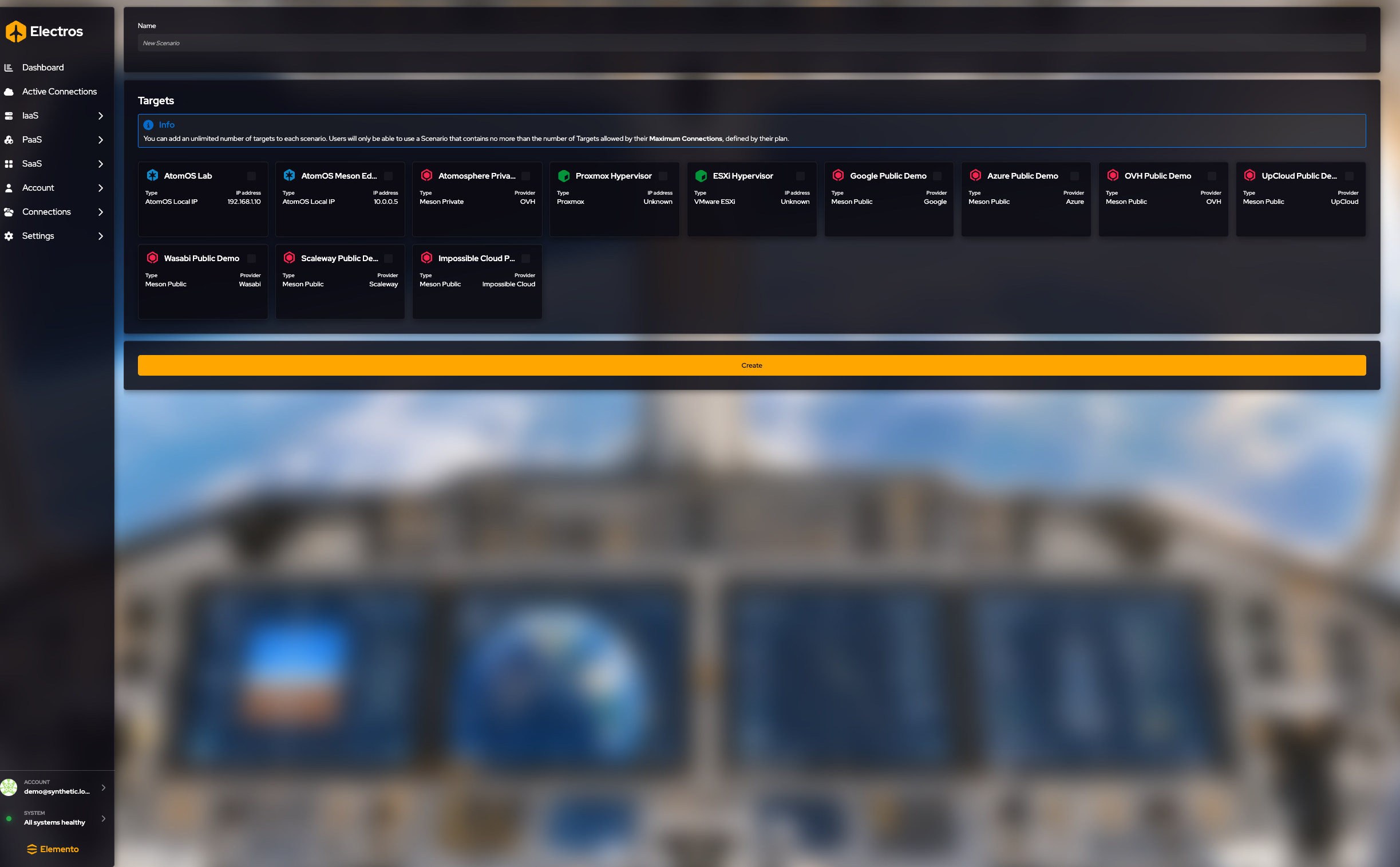
- Name the scenario.
- Tick the target cards that belong in it. You can select none, but a scenario with no targets does nothing useful. Your plan’s maximum connections caps how many you can enable at once — the info box on the form states the limit.
- Create (or Update if you opened an existing scenario).
To use it, go to Active Connections and activate the scenario. Targets that the active scenario requires cannot be switched off individually until you change scenario.
Scenarios
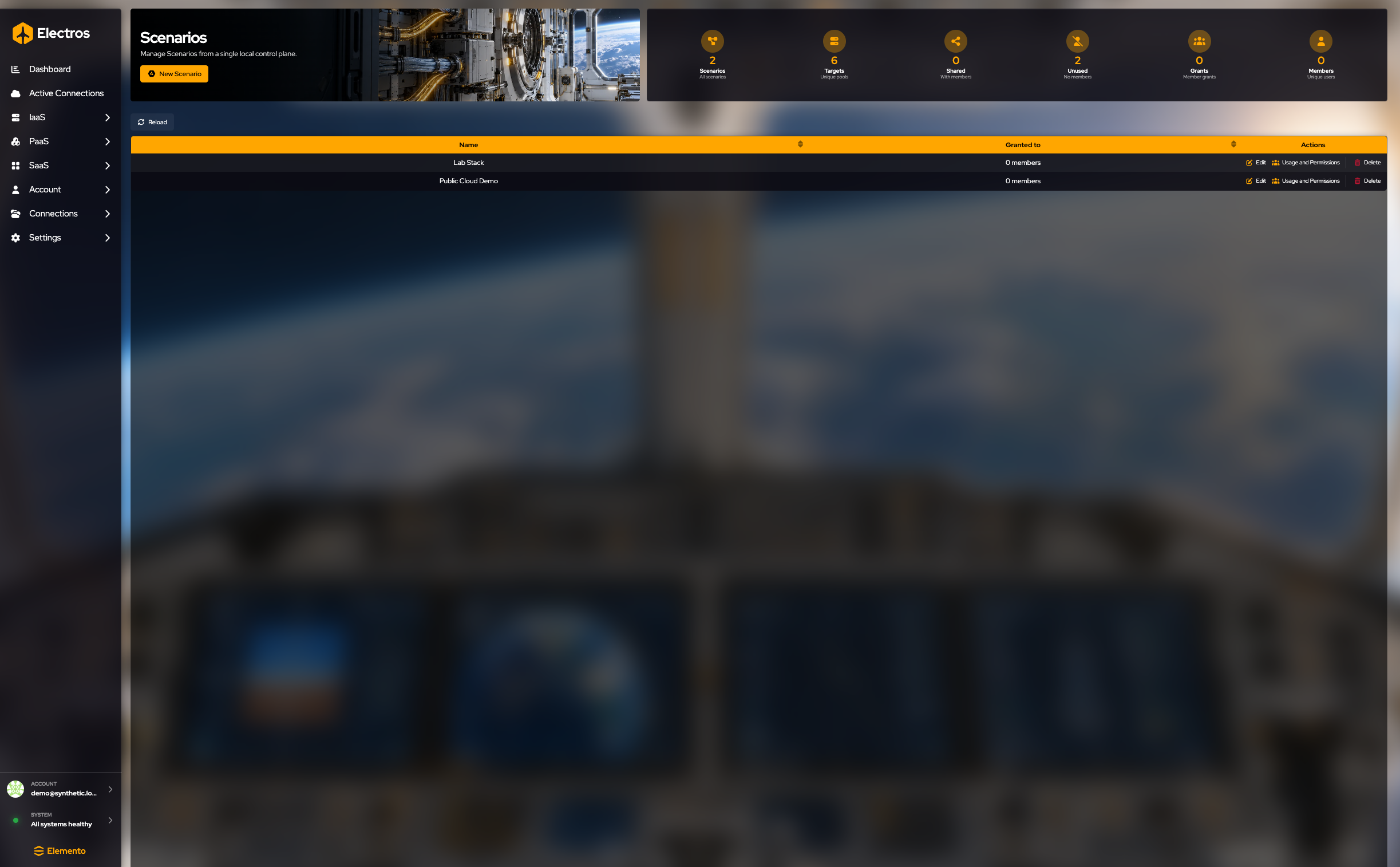
A scenario is a checklist of targets you want to enable together (“Lab Stack”, “Public Cloud Demo”). The table columns are Name and Granted to. The gauges count Scenarios, Targets, Shared, Unused, Grants, and Members.
| Action | What happens |
|---|---|
| New Scenario | Opens the create form. Steps are under Create a scenario |
| Edit on a row | Same form, with the name and ticks already filled |
| Usage and Permissions | Who may use this scenario |
| Delete | Asks you to type the scenario name. Cancel to keep it |
After you save a scenario, go to Active Connections and activate it. Until you do, the targets in it stay spare cards.