
Account
Account is about you and the organisation, not about VMs. Open it from the sidebar.
Your profile
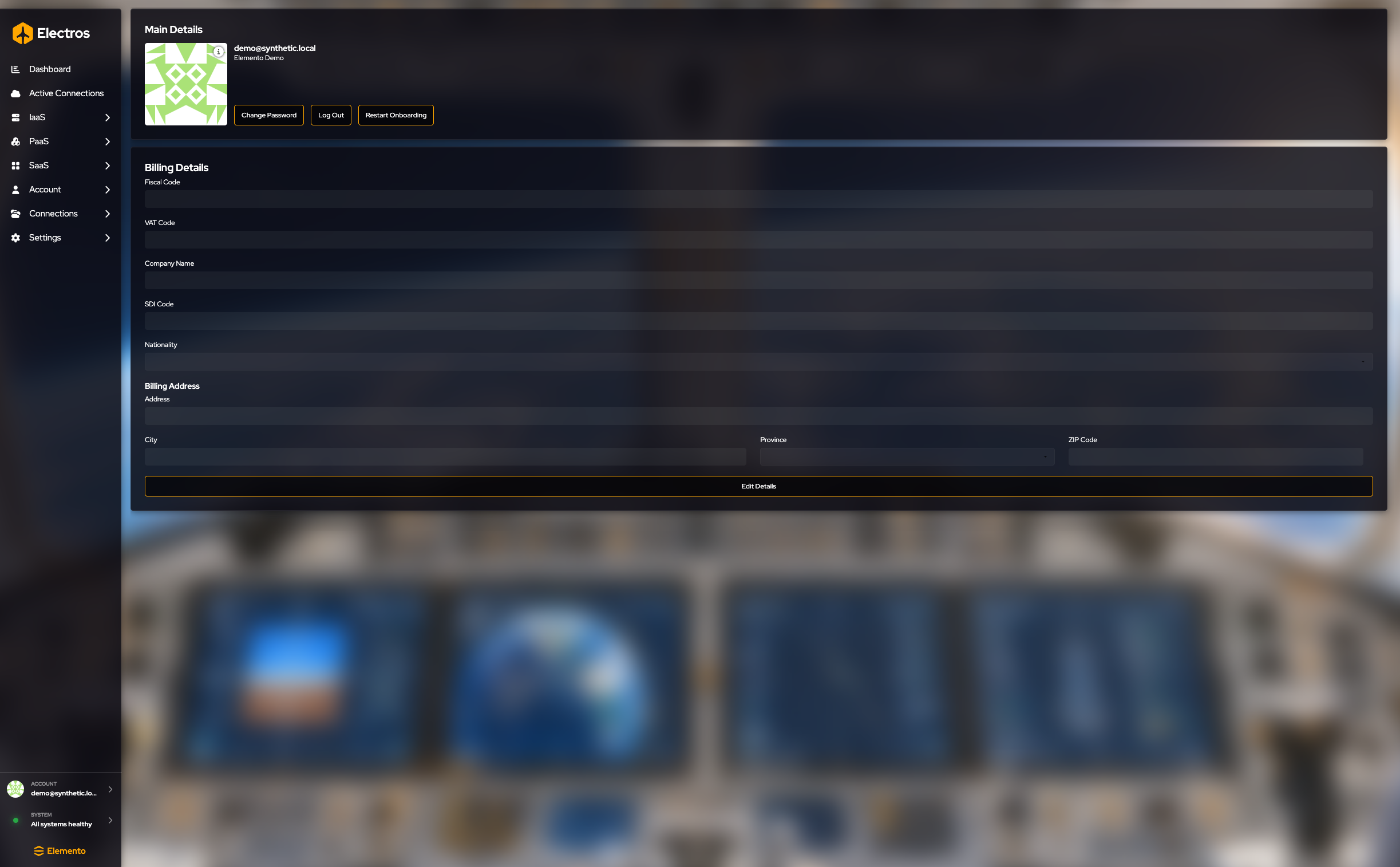
Main details shows your email, the organisation you are in, and your Gravatar. Change the picture on Gravatar, not in Electros. The info icon on the avatar says the same thing.
| Button | What it does |
|---|---|
| Change Password | Opens the Elemento portal password page in a browser. Electros does not collect the new password itself |
| Log Out | Ends this session. You will see the login screen |
| Restart Onboarding | Plays the introduction tour again |
Billing details lists fiscal code, VAT code, company name, SDI code, nationality, and the billing address (address, city, province, ZIP). The boxes start locked.
- Press Edit Details. The fields become editable, and Revert Changes and Save Details appear.
- Change what you need.
- Save Details writes them. Revert Changes puts the previous values back and locks the form again.
Email preferences
The sidebar entry is there. In the current build the page title is Email prefs todo and the canvas is empty. There is nothing to save yet. It does not change who can log in.
Organisation
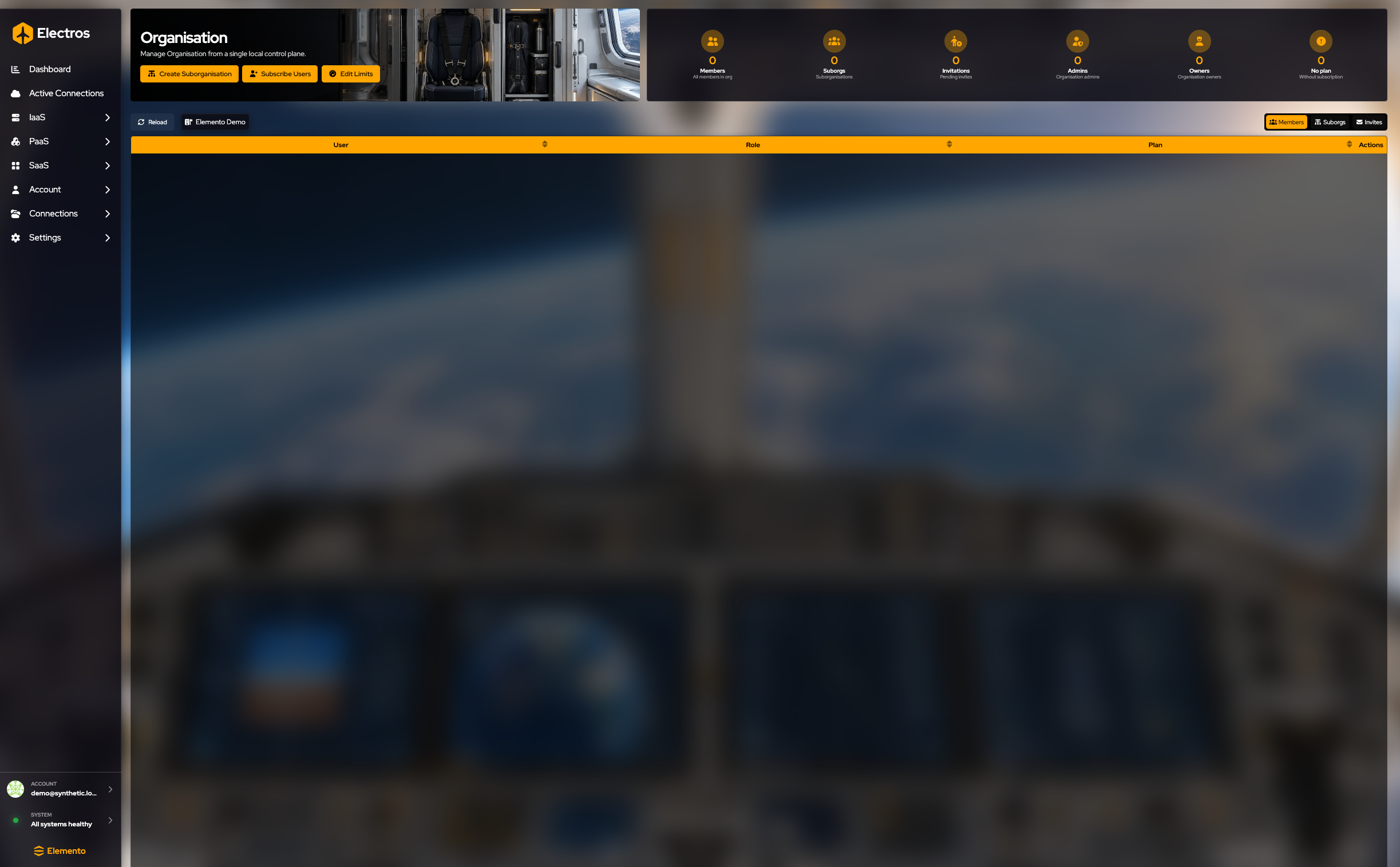

Visible when you can manage the organisation.
The gauges count Members, Suborgs, Invitations, Admins, Owners, and Nodes.
The buttons under the title are Create Suborganization, Subscribe Users, and Edit Limits. The strip on the right switches the table between Members, Suborgs, and Invites. The member table columns are User, Role, Plan, and Actions.
| I want to… | Where |
|---|---|
| Give a team its own quotas | Create Suborganization. Steps under Create a sub-organisation |
| Invite someone and put them on a paid tier | Subscribe Users. Steps under Invite people and subscribe them. This opens a payment page |
| Add an existing member to a sub-organisation | Open the sub-organisation, then Add people who are already in the organisation |
| Change CPU, RAM, or network caps | Edit Limits. Empty numbers mean no extra cap |
| Remove a member or delete a sub-organisation | The row asks you to type the name. Cancel to keep it |
Create a sub-organisation
Use a sub-organisation when a team should have its own members and its own quotas.
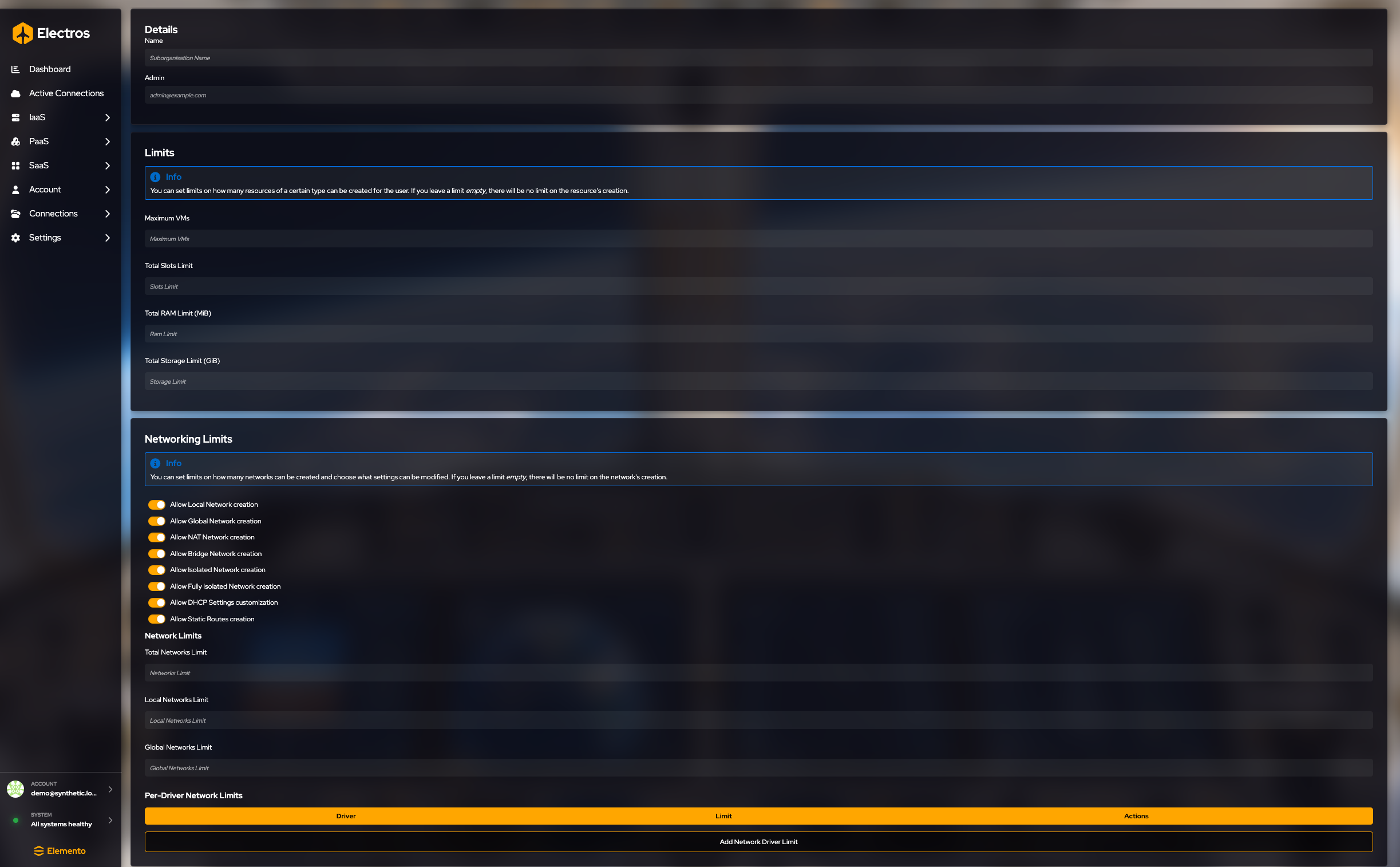
- Name — what people will see in the organisation list.
- Admin email — the person who administers this sub-organisation.
- Limits — leave a number empty for “no extra cap”. Switches start on, which means that kind of network is allowed.
- Press Create suborganisation only when the name and admin are correct.
Limits you can set:
| Limit | Unit |
|---|---|
| Maximum VMs | count |
| Total CPU slots | count |
| Total RAM | MiB |
| Total storage | GiB |
| How many networks | total, local, and global counts |
| Which network types are allowed | local, global, NAT, bridge, isolated, fully isolated, DHCP changes, static routes |
| Per-driver caps | add a row for a specific network driver |
Invite people and subscribe them
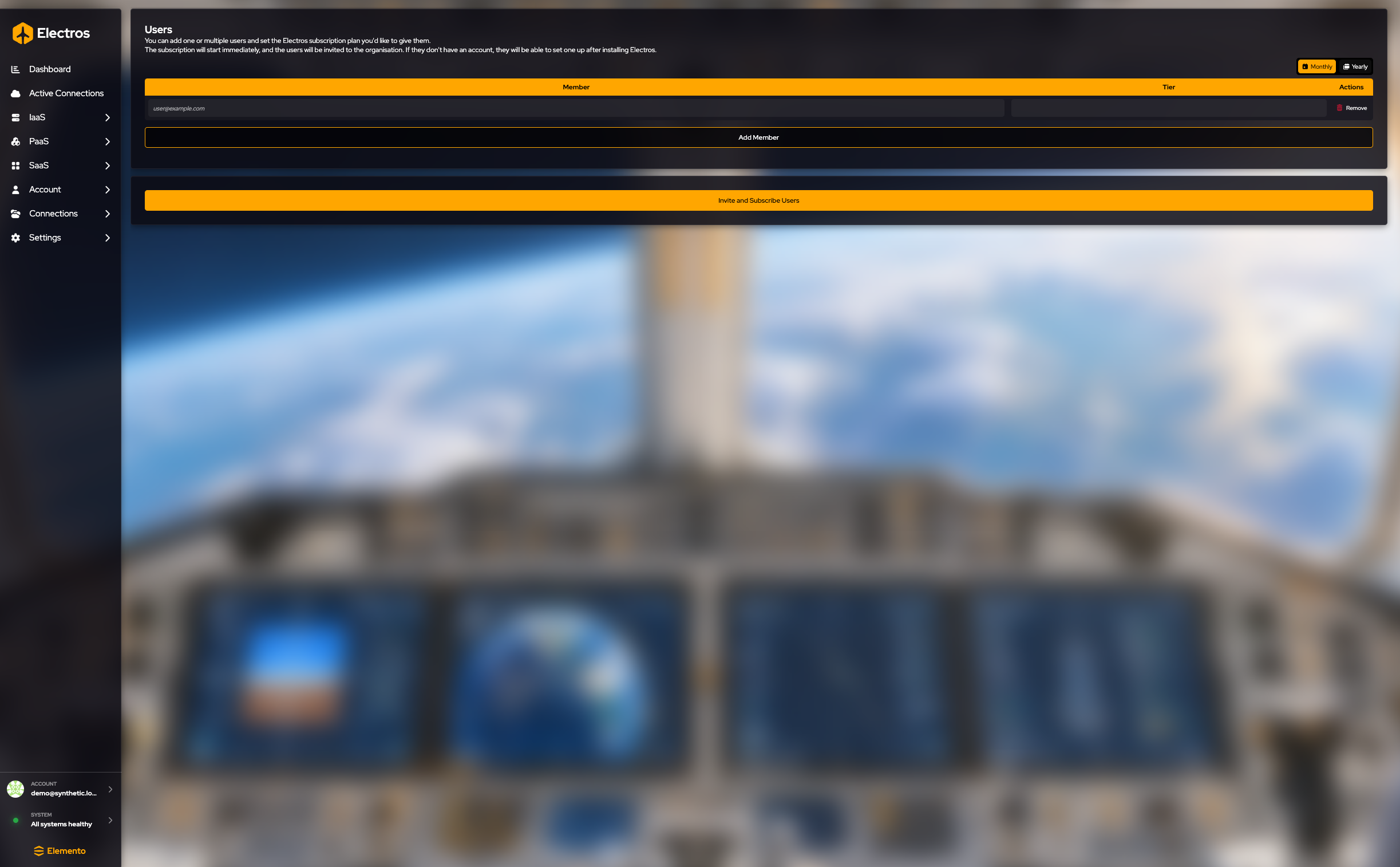
- Choose Monthly or Yearly. Monthly is already selected.
- Each row is one person: their email and a tier. The tier shows the price per month and per year.
- Add member for another row. Remove deletes a row you do not want.
- Invite and subscribe users opens a payment page. Stop before that button unless you intend to pay.
Add people who are already in the organisation
Open a sub-organisation, then Add members.
You can only add emails that already belong to the parent organisation and are not in this sub-organisation yet. The field suggests those people as you type. This screen does not invite someone new to Electros — use Invite and subscribe for that.
Billing
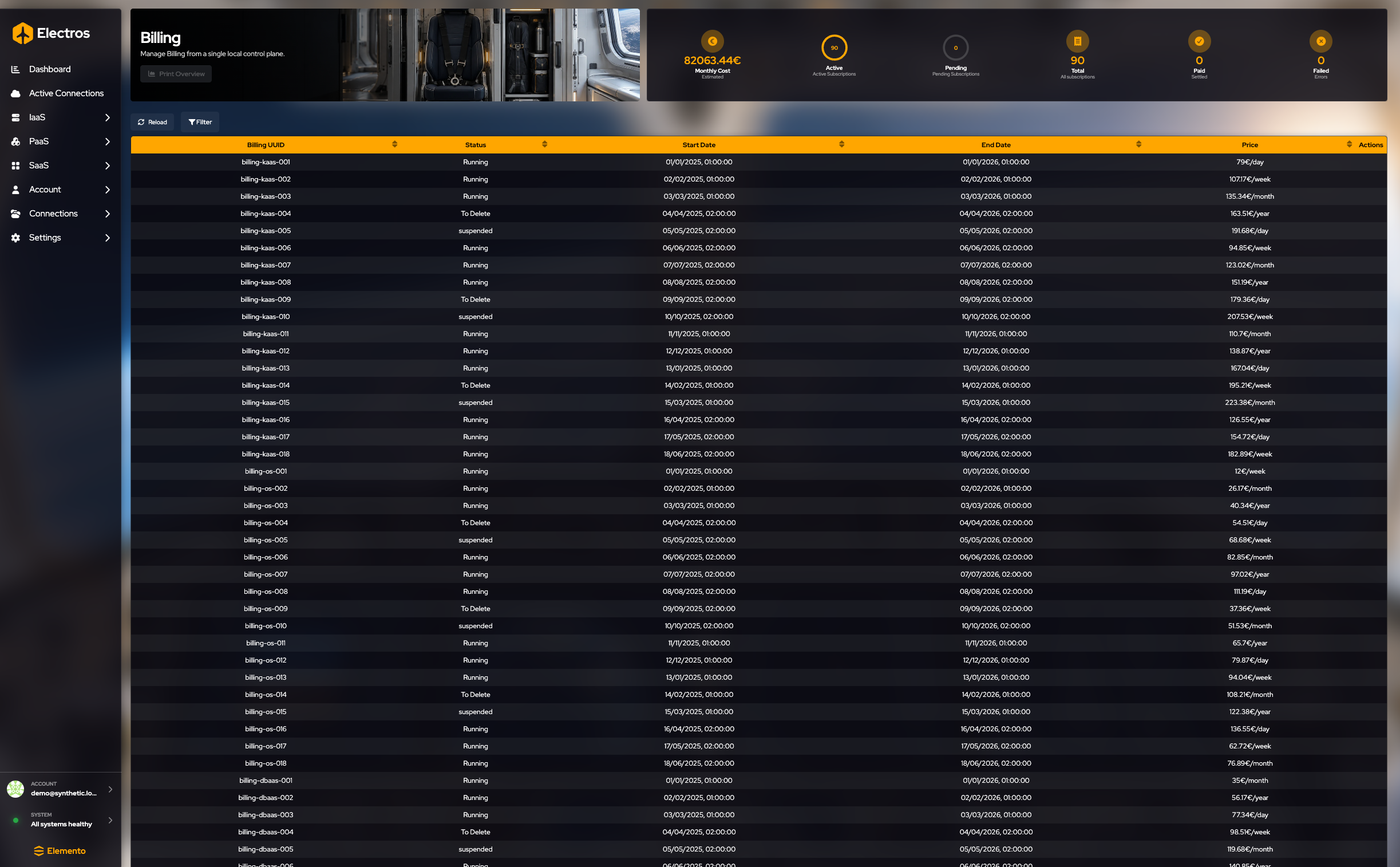
The gauges are Monthly Cost, Active, Pending, Total, Paid, and Failed.
The table columns are Billing UUID, Status (Running, To Delete, suspended), Start Date, End Date, Price, and Actions.
| Control | What it does |
|---|---|
| Reload | Refreshes the invoice list |
| Filter | Show terminated subscriptions includes plans that have already ended |
| Print Overview | Reserved; the button is disabled |
A return from checkout lands on a short callback page. You do not fill that page in. If you never started checkout, there is nothing to see there.
Invitations and email verification finish in your mailbox, outside Electros. The app only shows the result after you accept the link.