
Spot VMs
Spot VMs (ephemeral VMs) are short-lived machines on a public cloud account. They do not run on your local AtomOS hosts. Use a normal virtual machine when the guest must stay on hardware you control.
What this page is for
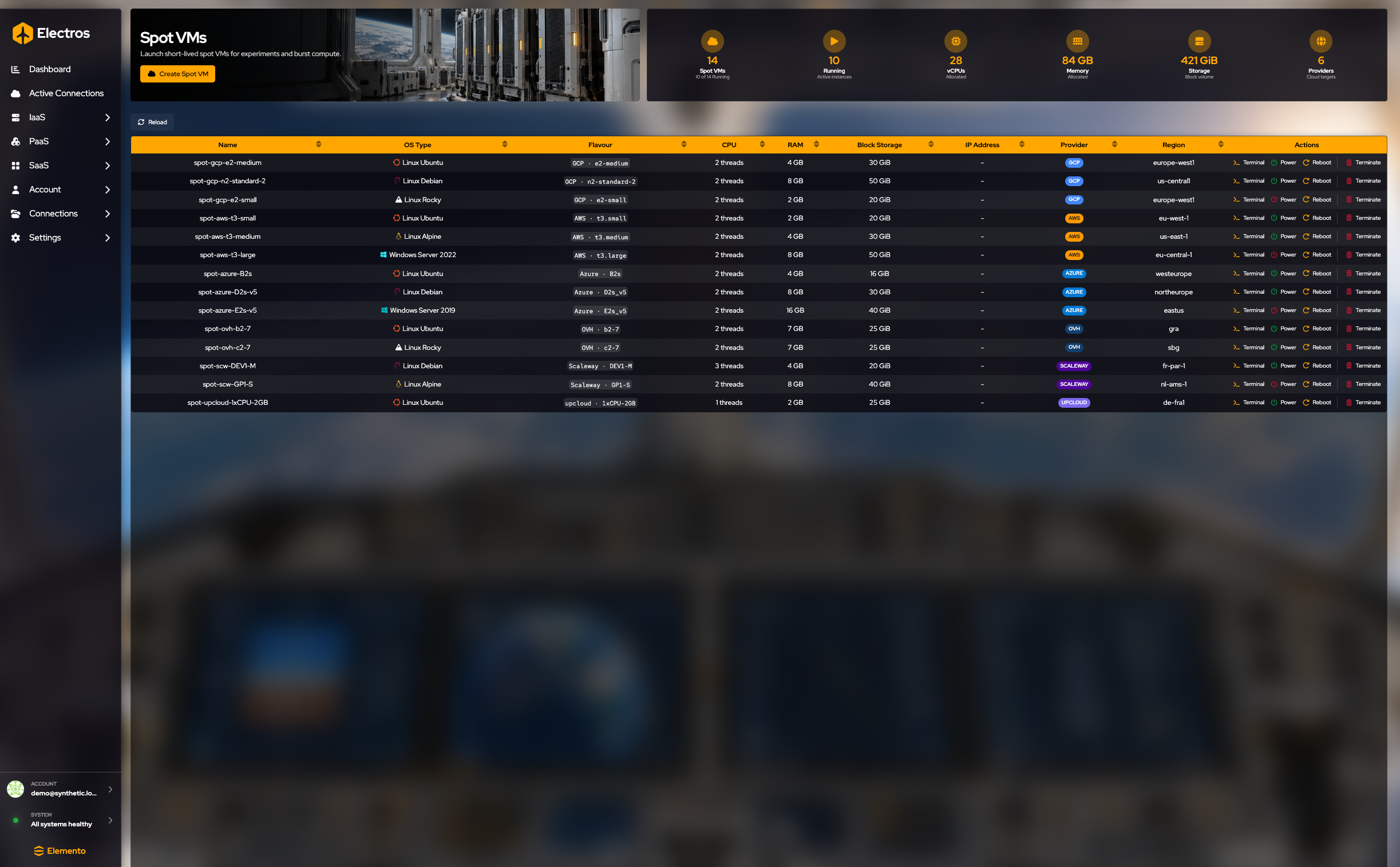
Spot VMs are burst machines on a public cloud. Use them for a build, a test, or a short experiment, then terminate them. They are not the place for a disk you need next month. That belongs on Virtual Machines, on a host you control. Leaving a spot VM running is what the bill is for, so the row is built around power and terminate rather than a long lifecycle.
Read the page
The banner says these are short-lived machines for experiments and burst compute.
The gauges count Spot VMs, Running, vCPUs, Memory, Storage, and Providers.
The table columns are Name, OS Type, Flavour, CPU, RAM, Block Storage, IP Address, Provider, Region, and Actions. Reload refreshes the list. An empty table means you have not created one yet, not that the page failed.
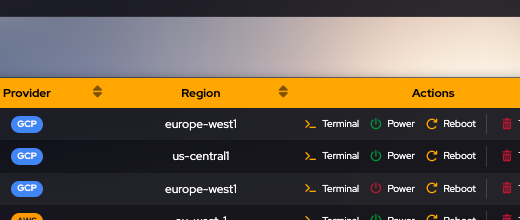
| Action | What it does |
|---|---|
| Terminal | Opens an SSH session to the instance public IP in the Electros desktop app. The guest must be running and reachable on port 22. Enter the username and password or key you set at create time |
| Power | Starts or stops the instance |
| Reboot | Restarts it |
| Terminate | Deletes the spot VM. It does not keep running, and you stop paying for it. Confirm only when you mean to throw the machine away |
SSH from Terminal
Terminal is available in the Electros desktop app only. The browser build cannot open the SSH window.
New spot VMs open TCP 22 (and 443) on the public network by default so SSH can reach the guest. The session uses the instance public IPv4, not the Meson API host.
Connect form
The window opens on a connect screen with the VM summary (name, IP, flavour, provider, OS, and state). Host and username are prefilled from the row.
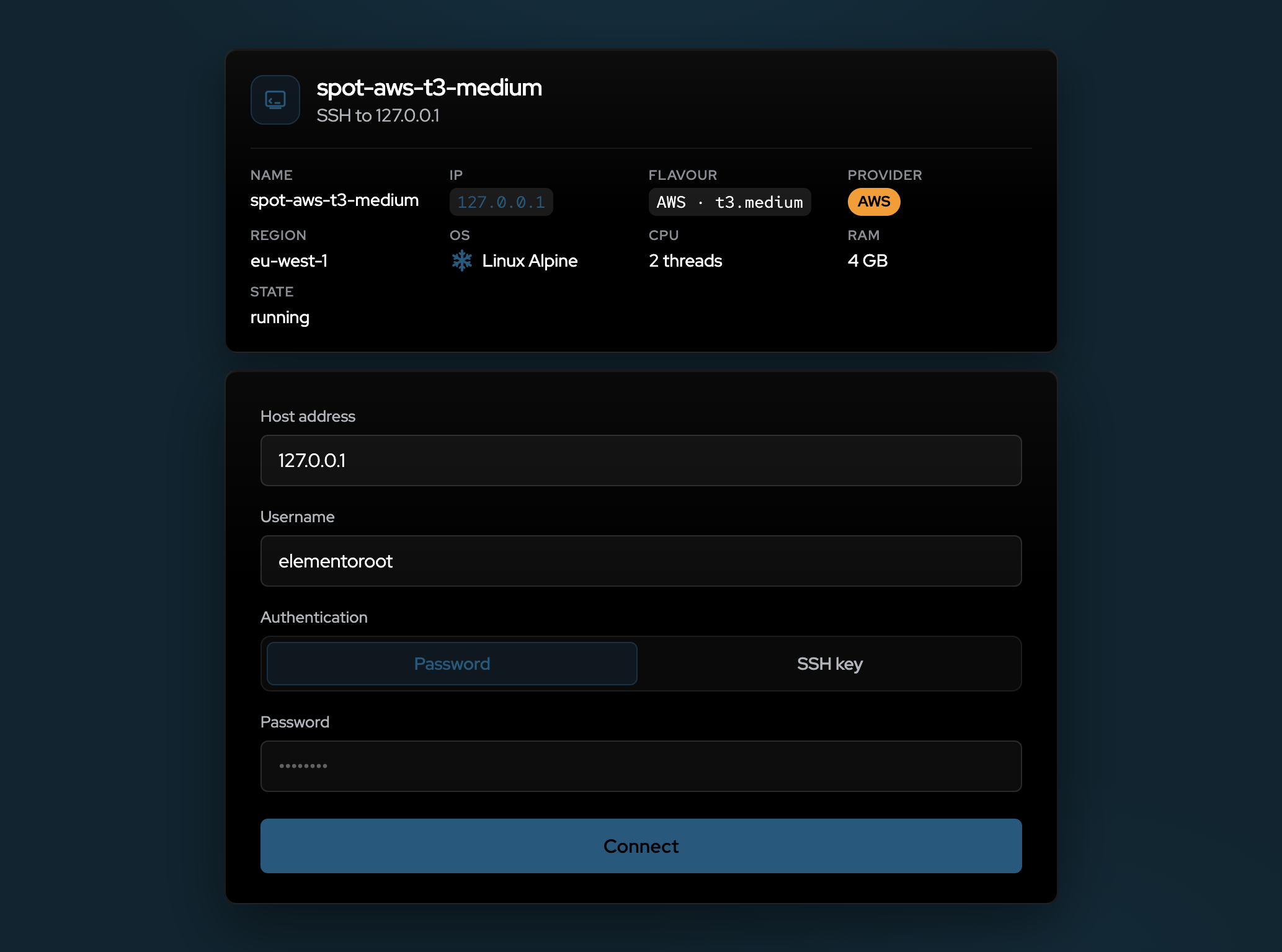
Choose how to authenticate:
| Method | What you enter |
|---|---|
| Password | The password you set when creating the spot VM |
| SSH key | A private key from ~/.ssh, or Browse… to pick another file. Optional passphrase if the key is encrypted |
Press Connect when the guest is running and port 22 is reachable.
Connected session
After connect, the title bar keeps the instance identity visible: name, user@ip, OS, provider, flavour, and connection status. The terminal theme follows the guest OS.

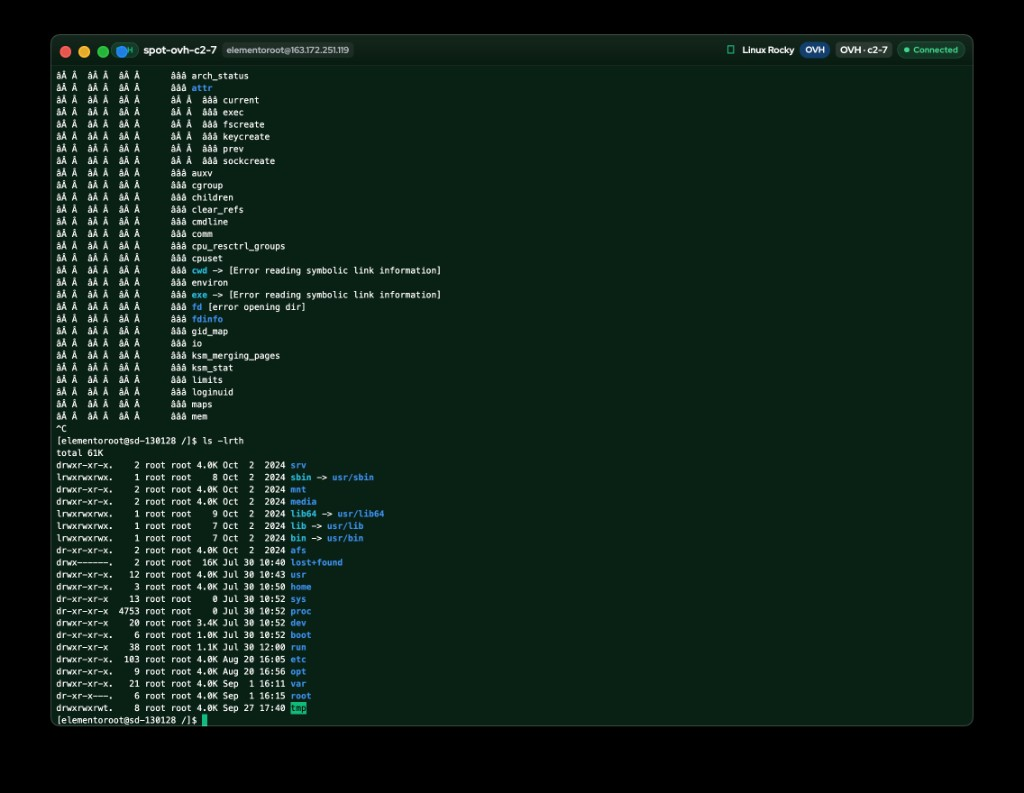
If the guest has no public IP yet, or SSH is opened outside the desktop app, Electros shows an error instead of a blank window. If the instance is powered off, you can open anyway or boot and open.
Create one
Create Spot VM opens the wizard. The screen still uses form, then host, but the host list is cloud accounts only.
1. Name and operating system
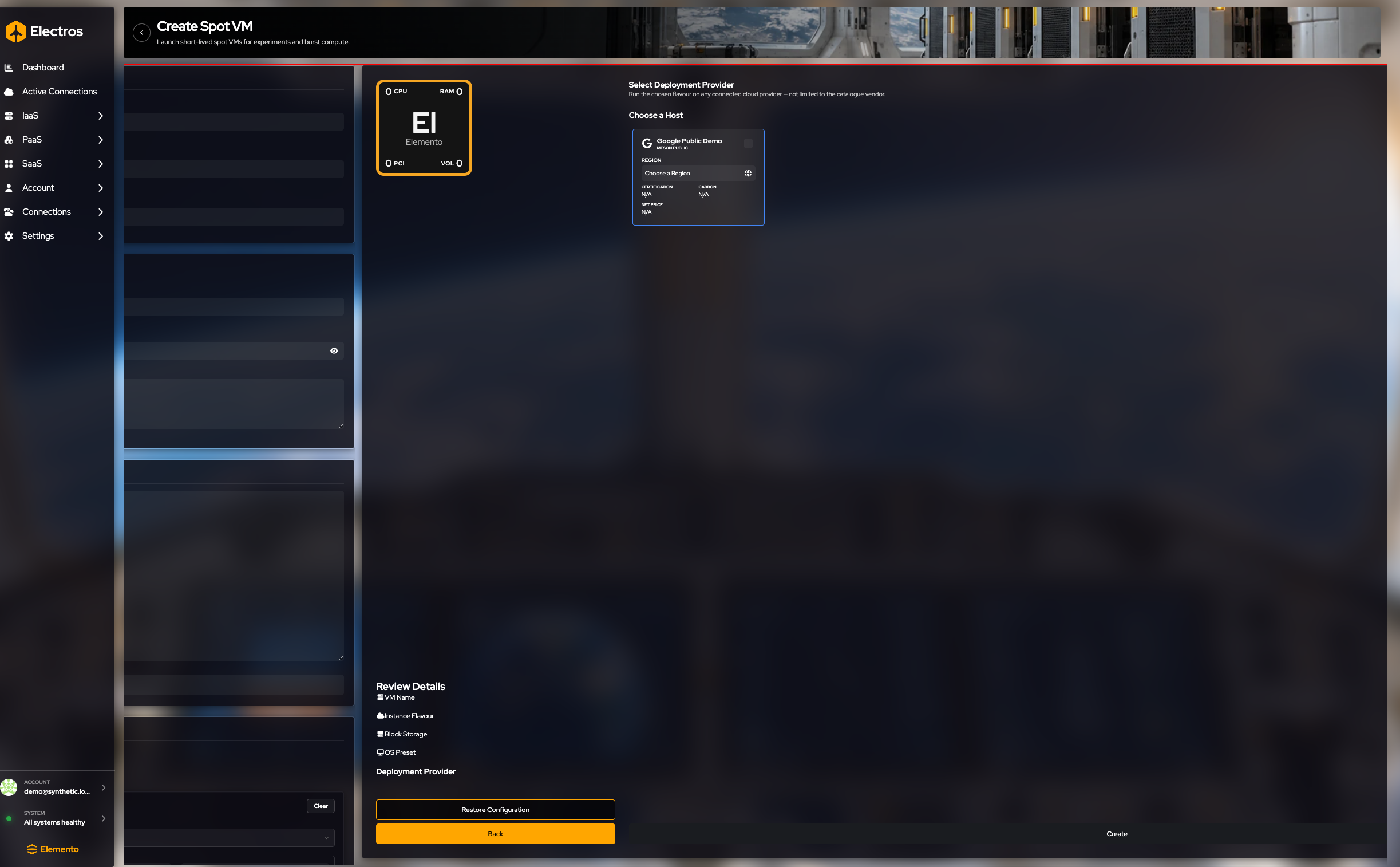
- Name — required. Dice or type.
- OS family, flavour, and version — all required. This is the image the cloud will boot.
2. How you will log in
- Username — required.
- Password — optional, and a secret. Prefer an SSH key when you can.
- SSH public key — paste the public key only, never the private key.
After the instance is running, Terminal on the Spot VMs list opens an SSH window to the public IP (desktop app). New spot VMs expose TCP 22 by default for that path. See SSH from Terminal.
3. Cloud-init (optional)
The large text box is user-data for first boot. Upload file opens your computer’s file picker. Skip both if the image does not need cloud-init.
4. Pick a size (flavour)
The catalogue is grouped in tabs (for example an EC2-style list). You must select one flavour card before create.
Narrow the list if it is long:
| Control | What it does |
|---|---|
| Search | Matches flavour names |
| Workload | All, burstable, general, compute, memory, development, or cost |
| Sort | Name, vCPU, RAM, or disk, either direction |
| vCPU / RAM / disk min and max | Hides flavours outside the range |
| Clear filters | Resets the filters, not the form |
5. Read the review
Check VM name, instance flavour, block storage, OS preset, and deployment provider. If the flavour line is empty, you have not selected a size yet.
6. Choose a cloud host
Press Continue.
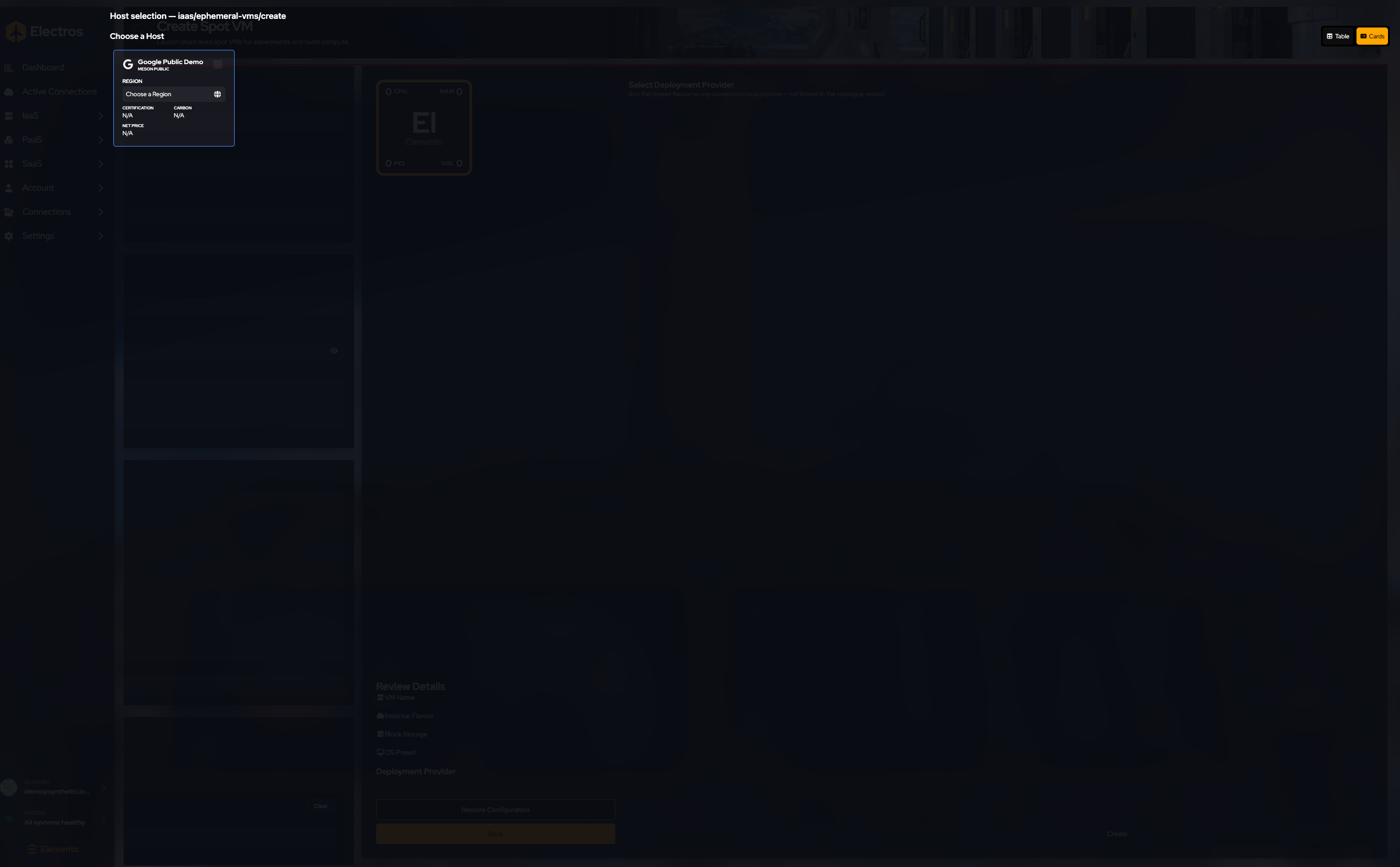
Only cloud targets appear. Select one. Create may open a payment page — do not finish checkout unless you mean to be billed.
Create at the end can open a payment page. Do not finish checkout unless you intend to be billed. When the instance is no longer needed, delete it from this list so it does not keep running.